How to Free Up Google Drive Space Fast (Without Losing Anything You Need)
Need space now but afraid to delete the wrong thing? Here's how to free up Google Drive storage fast and safely—without losing files that matter.
Overdrive Team//6 min read
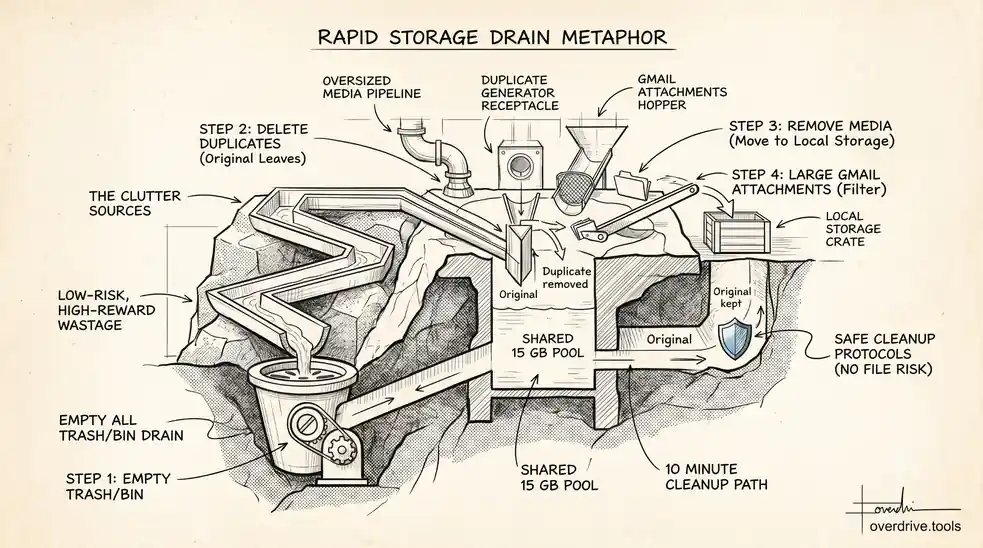
To free up Google Drive space fast, target the four things that waste the most storage while carrying the least risk: emptied Trash, duplicate files, oversized media, and large Gmail attachments. You can usually reclaim several gigabytes in under ten minutes—without touching a single file you actually need.
The reason most people put off cleaning their Drive isn't laziness. It's fear. When storage fills up and uploads stop working, the instinct is to start deleting—but right behind that is the worry: what if I delete something important? So nothing gets deleted, the warning emails keep coming, and the problem grows. The good news is that the fastest wins are also the safest ones. You don't need to make hard decisions about precious files to get back under your limit.
Why Your Drive Filled Up
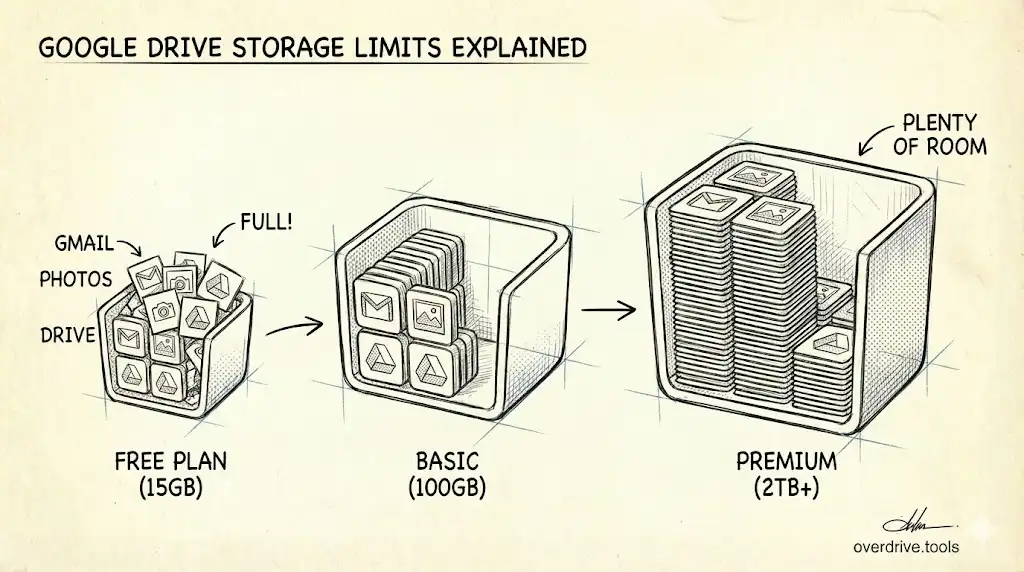
Your Google account gives you free storage (5 GB by default since May 2026, up to 15 GB once you verify a phone number), and it's shared across Google Drive, Gmail, and Google Photos. That last part catches people off guard: an overflowing Gmail inbox or a Photos library backed up in "Original quality" can fill your quota even if Drive itself looks nearly empty.
It also helps to know what doesn't count. Files created in Google's own editors—Docs, Sheets, Slides, Forms, and Drawings—are free and unlimited. Uploaded files (videos, PDFs, images, ZIPs) and email attachments are what actually consume space. That means the path to fast cleanup is narrow and predictable: a small number of large, uploaded files are almost always the culprit.
The Fast, Safe Cleanup
Here are your options, ordered from the quickest path to the most manual.
Option 1: Scan and Clean With Overdrive
The slow part of any cleanup is finding what's safe to remove. Drive makes you dig through folders one at a time, and it never shows duplicates, large files, and forgotten shares together in one place.
Overdrive scans your whole Drive in about two minutes and lays out exactly where your space went: your largest files, duplicate sets grouped automatically, empty folders, and link-shared files—all in one dashboard. You review what it found and clear it in a few clicks. Because everything is grouped and labeled, you can free gigabytes quickly while still seeing each file before it goes, so nothing important disappears by accident. The initial scan is read-only and free.
Option 2: Clean It Up Manually
If you'd rather work by hand, run these four passes in order. Each one is low-risk and high-reward.
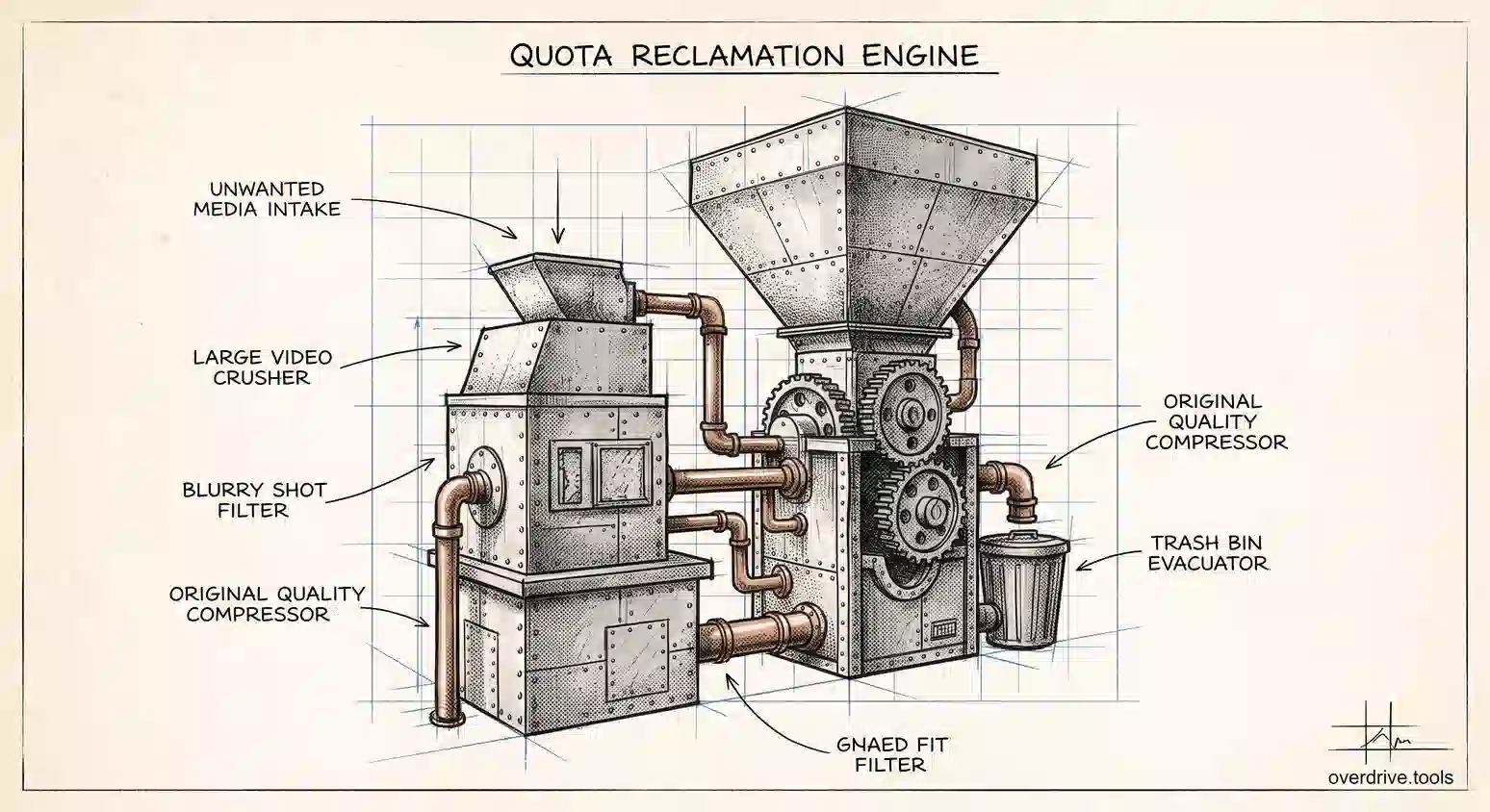
Empty all three Trash bins. Deleted files sit in Trash for 30 days and keep counting against your storage the whole time. This is the single most common reason a Drive stays "full" after you've been deleting things. Empty Trash in Drive, then the Trash and Spam labels in Gmail, then the Bin in Google Photos.
Delete oversized media. Sort your Drive by file size and look at the top of the list. Old screen recordings, downloaded videos, raw photos, and exported design files are usually safe to remove or move to your computer. A couple of large videos often free more space than hundreds of documents.
Remove duplicates. Downloaded the same attachment twice? Copied a folder "just in case"? Synced the same photos from two phones? Each copy counts fully. Duplicates are the biggest source of recoverable space precisely because they're invisible—you never set out to keep two of anything.
Clear large Gmail attachments. In Gmail, search for has:attachment larger:10M to surface years of forgotten large files. Delete what you don't need, then empty Gmail Trash to reclaim the space.
Why "Fast" Doesn't Mean "Risky"
Every step above is reversible or low-stakes by design. Trash you've already chosen to delete. Duplicates leave the original in place. Large media files you can move to local storage instead of deleting outright. And nothing here touches the files you'd actually grieve—your real documents and folders stay exactly where they are.
If you do want to clear something irreplaceable, take one extra step first and back it up before deleting. A quick download or copy to another account turns an irreversible delete into a safe one.
What Not to Bother With
Don't waste time deleting Google Docs, Sheets, or Slides—they don't count toward your storage, so removing them frees almost nothing. Don't delete files shared with you; they use the owner's quota, not yours. And don't go folder by folder reading every document trying to decide what's "worth keeping." That's the slow, anxiety-inducing approach that keeps people stuck. Focus on size and duplication, not sentiment.
Where the Space Usually Hides
When people can't find what's eating their storage, it's almost always in one of a few predictable places. Knowing them turns a frustrating search into a quick check.
The first is camera and phone backups. If your phone uploads photos and videos automatically, that's usually the single largest consumer—modern video files are huge, and they accumulate silently. The second is Drive for Desktop sync folders. If you sync a folder from your computer, everything you drop into it uploads to Drive and counts against your quota, including downloads and temporary files you never meant to keep. The third is Gmail attachments, which hide inside messages and so don't register as "files" even though they count the same. The fourth is duplicates spread across folders, which are invisible precisely because no two of them sit side by side.
Notice what's not on that list: your Google Docs and Sheets. People often start there because documents feel like clutter, but native Google files don't count toward storage at all. Skipping them and heading straight for media, sync folders, and attachments is what makes a cleanup fast.
A 60-Second Triage
If you're truly pressed for time, do this much: open one.google.com/storage and look at which of the three services—Drive, Gmail, or Photos—is using the most. That single screen tells you where your space actually went, so you don't waste effort in the wrong place. Then attack that service first using the steps above. For most people the answer is Photos or Gmail, not Drive, which is exactly why deleting Drive files alone so often fails to help.
Keep It From Happening Again
Once you're back under your limit, a few habits keep you there. Empty Trash monthly. Set Google Photos to "Storage saver" so new photos take far less space. Convert uploaded Word and Excel files to Google format when you can, since the converted versions don't count. And run a quick cleanup pass every few months instead of waiting for the next "storage full" warning.
A ten-minute habit beats an hour-long emergency every time. The first cleanup is the big one; after that, staying clean is easy.
What If You're Still Out of Space?
Sometimes a thorough cleanup still leaves you near the limit—and that's actually useful information. It means your storage isn't full of junk; it's full of things you genuinely use. At that point you have a real decision rather than a cleanup problem. Compare what an upgrade costs against the value of the space, and weigh whether the files could live somewhere else, like local storage or a separate account. Many people find that one more pass at duplicates and large media gets them comfortably clear, while others legitimately need more room because they work with video, design files, or large archives. Either way, you'll be deciding with a clean account in front of you instead of guessing. The worst outcome is paying for extra storage to hold duplicates and forgotten clutter you'd have deleted anyway—so the fast cleanup is worth doing first, even if you suspect you'll upgrade.
Frequently Asked Questions
How can I free up space the fastest?
Empty Trash in Drive, Gmail, and Photos, then delete your largest media files and obvious duplicates. Those steps reclaim the most space in the least time.
Why is my storage still full after deleting?
Deleted files remain in Trash for 30 days and keep counting. Empty Trash in all three services to actually free the space.
Is it safe to delete duplicates?
Yes—removing a duplicate keeps the original. Duplicates add nothing but storage cost, so they're among the safest things to clear.
Will freeing up space delete my photos?
Not if you choose carefully. Switching Photos to "Storage saver" compresses new uploads without removing them, and emptying Trash only removes what you already deleted.
Do Google Docs take up storage?
No. Docs, Sheets, Slides, Forms, and Drawings are free and unlimited. Only uploaded files and attachments count toward your allowance.
Related Articles
- The Ultimate Google Drive Storage Cleanup Guide
- How to Find and Delete Duplicate Files in Google Drive
- Why Is My Google Drive Full but Empty?