How to Find and Delete Large Gmail Attachments
Gmail attachments silently consume your Google storage. Learn how to find emails with large attachments using search operators and delete them to free up space fast.
Overdrive Team//4 min read
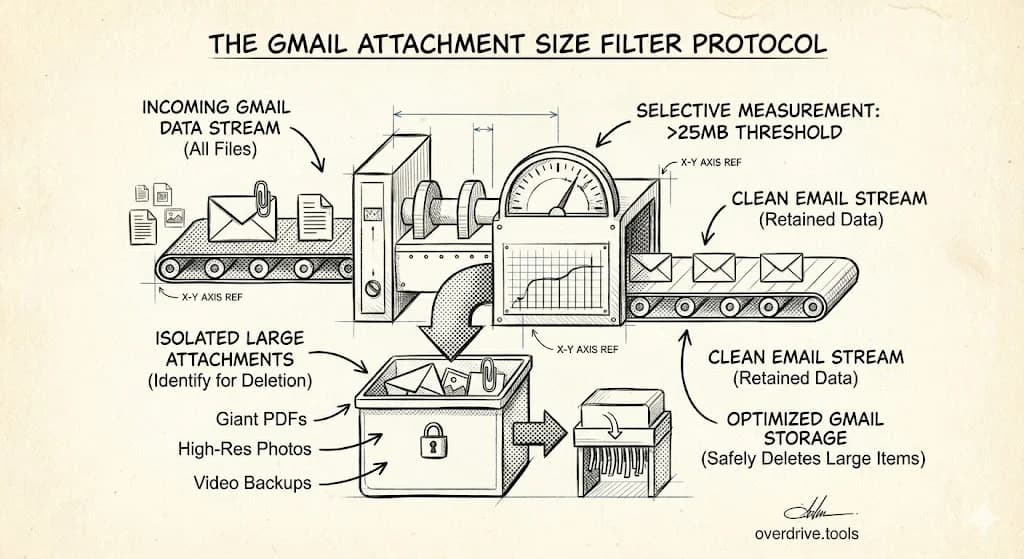
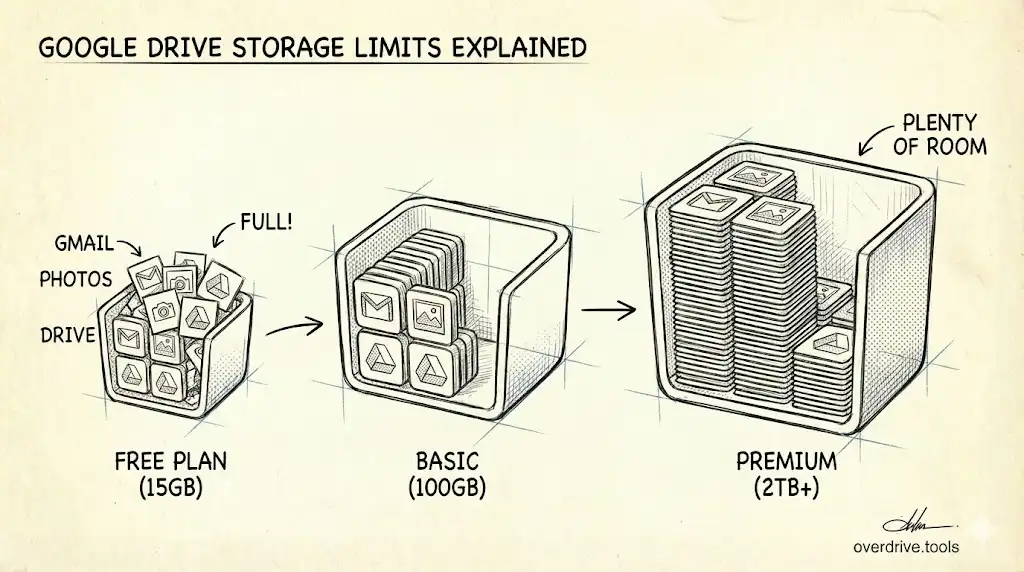
Gmail attachments count against your Google storage quota — the same pool shared with Google Drive and Google Photos (5 GB free by default, up to 15 GB with a verified phone number). Every PDF, photo, and presentation sitting in your inbox is using space, and unlike Drive files, you never see them listed anywhere. They just accumulate invisibly until you run out of storage.
The fix is straightforward: use Gmail's search operators to find the largest attachments, review them, and delete what you don't need. Most people can free several gigabytes in under 15 minutes.
Check If Gmail Is Actually the Problem
Before diving into email cleanup, confirm Gmail is where your storage is going.
Option 1: Scan Your Google Drive First (Recommended)
If you're not sure what's eating your storage, start with your Drive. Overdrive scans your entire Google Drive and shows large files, duplicates, and hidden app data in one view. If Drive isn't the culprit, you'll know immediately — and can focus your cleanup efforts on Gmail instead.
Option 2: Check Google's Storage Breakdown
Go to one.google.com/storage to see how your storage splits across Drive, Gmail, and Photos. If Gmail is consuming multiple gigabytes, that's where to focus.
Gmail Search Operators for Large Attachments
Gmail's search bar accepts special operators that filter by size, age, and attachment status. Here are the most useful ones for storage cleanup:
Find All Large Emails
Emails larger than 10 MB:
larger:10M
Emails larger than 5 MB:
larger:5M
Emails larger than 25 MB (Gmail's attachment limit):
larger:25M
Start with larger:10M — these are your biggest storage consumers. If you need more, work down to larger:5M.
Find Old Large Emails
Old attachments are usually safe to delete. Combine size and age filters:
Large emails older than 1 year:
larger:5M older_than:1y
Large emails older than 2 years:
larger:10M older_than:2y
Large emails older than 6 months:
larger:5M older_than:6m
Find Attachments by Sender
If you know certain senders send large files:
Large emails from a specific person:
from:name@example.com larger:5M
Large emails from a domain:
from:@company.com larger:5M
Find Attachments by Type
Emails with any attachment:
has:attachment
Emails with specific file types:
filename:pdf larger:5M
filename:zip larger:10M
filename:mp4
filename:mov
Video files (mp4, mov) are often the largest — worth searching even without a size filter.
Find Sent Attachments
People forget that sent emails count too. Every attachment you've ever sent is stored in your account.
Large sent emails:
in:sent larger:10M
Old large sent emails:
in:sent larger:5M older_than:1y
How to Delete Gmail Attachments
Once you've found large emails, here's how to clean them up:
Step 1: Review the Results
Run a search like larger:10M and scan through the results. Look for:
- Old project files you no longer need
- Duplicate attachments (same file sent in multiple threads)
- Marketing emails with large images
- Automated emails with reports or exports
- Files you've already saved elsewhere
Step 2: Select and Delete
To delete individual emails:
- Open the email
- Click the trash icon (or press
#)
To delete multiple emails:
- Check the boxes next to emails you want to delete
- Click the trash icon in the toolbar
To delete all search results:
- Run your search (e.g.,
larger:10M older_than:2y) - Click the checkbox in the toolbar (selects visible emails)
- Click "Select all conversations that match this search"
- Click the trash icon
Be careful with bulk deletion — review first to avoid deleting something important.
Step 3: Empty the Trash
Deleted emails go to Trash and still count against your storage for 30 days. To free space immediately:
- Click "Trash" in the Gmail sidebar (may be under "More")
- Click "Empty Trash now" at the top
- Confirm deletion
This permanently deletes the emails and their attachments.
Quick Wins: Fastest Ways to Free Space
If you're in a hurry, these searches typically find the most deletable content:
Marketing emails with attachments:
unsubscribe larger:1M
Marketing emails with images and PDFs accumulate fast. Most are safe to delete.
Old large attachments:
larger:10M older_than:2y
If you haven't needed it in two years, you probably don't need it.
Spam with attachments: Go to Spam folder → "Delete all spam messages now" Spam auto-deletes after 30 days, but clearing it now frees space immediately.
Promotions tab:
category:promotions larger:1M
Promotional emails often contain large images.
What About Saving Attachments Before Deleting?
If you need to keep the files but not the emails:
Download to your computer:
- Open the email
- Hover over the attachment
- Click the download icon
Save to Google Drive:
- Open the email
- Hover over the attachment
- Click the Drive icon
Note: Saving to Drive doesn't reduce your total storage — it just moves the usage from Gmail to Drive. Only download locally if you want to free Google storage entirely.
Preventing Future Accumulation
A few habits keep Gmail from filling up again:
Delete large emails after processing: When you receive a large attachment, download it if needed, then delete the email. Don't let it sit in your inbox forever.
Use Drive links instead of attachments: When sending large files, upload to Drive and share a link. The file exists once instead of duplicating across email threads.
Unsubscribe from heavy senders: Marketing emails with large images add up. Unsubscribe from ones you don't read.
Monthly cleanup: Once a month, search larger:10M older_than:1m and delete what you don't need. Prevents accumulation.
Related Articles
- Why Gmail Is Quietly Eating Your Google Storage
- Google Drive Storage Full? Here's Why (and How to Fix It)
- The Ultimate Google Drive Storage Cleanup Guide