How to Lock a File in Google Drive
Locking a Google Drive file prevents anyone from editing or commenting on it, even with edit access. Here's how to use it and when it makes sense.
Overdrive Team//6 min read
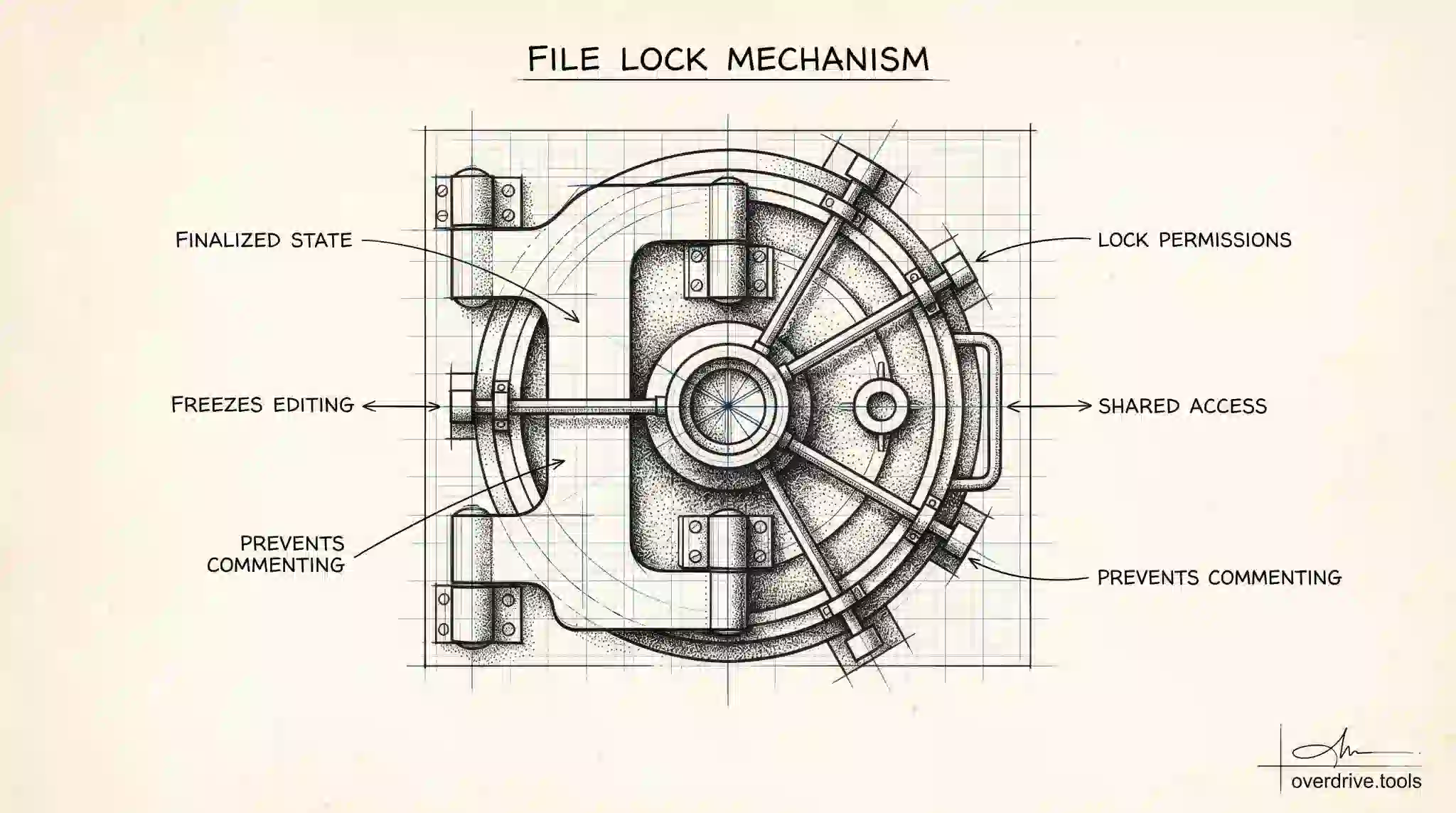
Google Drive has a Lock feature that freezes a file against any further editing or commenting — even by people who have full edit access. It's designed for situations where a document is finalized and you want to prevent any accidental or unauthorized changes, without removing access entirely. Here's how it works and when to use it.
What Locking a File Does
When you lock a file in Google Drive, the following become impossible for all users, regardless of their permission level: editing the file's content, adding or resolving comments, and renaming the file. Viewers can still open and read the file. Users with edit access can still download it, make a copy, or share it — the lock specifically prevents content changes, not access.
The file stays visible and readable to everyone who already has access. They'll see a padlock icon indicating the file is locked, and all editing controls will appear grayed out.
Locking is reversible. Anyone with edit access to the file can unlock it, which restores normal editing for all users.
How to Lock a File
To lock a file, right-click it in Google Drive and select File information, then click Lock. You can also lock a file from within a Google Doc, Sheet, or Slide by going to File > Lock.
A confirmation dialog will appear describing what the lock does. Confirm it, and the file is locked immediately.
To unlock the file, follow the same steps and select Unlock. The file returns to its normal editable state.
Locking works for all file types in Drive — Google-native files (Docs, Sheets, Slides) and uploaded files (PDFs, Word documents, images, and others).
When Locking Is Useful
Lock is most valuable in a few specific scenarios.
Finalized documents. Once a contract, report, or proposal has been approved, locking it prevents accidental edits to what should now be a fixed record. Version history still exists, but a locked file ensures no new changes can creep in after sign-off.
Templates that shouldn't be edited in place. If you have a template file that team members are supposed to copy and fill in — rather than editing the original — locking the template prevents someone from accidentally modifying the source.
Shared files during review periods. If you've sent a file out for review and want to ensure reviewers can read and download it but cannot make changes while it's under evaluation, locking enforces that without changing who has access.
Archival files. Documents from closed projects that might be referenced in the future benefit from being locked so that historical accuracy is preserved.
What Locking Doesn't Do
Locking is not a substitute for access control. It doesn't prevent someone with access from downloading the file and editing their local copy. It doesn't prevent sharing or making copies — a locked Google Doc can be duplicated, and the copy is unlocked. It also doesn't affect who can view the file.
If you need to prevent someone from accessing the file at all, you need to remove their sharing access, not lock the file. If you need to prevent downloads or copying, that's a separate setting in the sharing dialog (unchecking "Viewers and commenters can see the option to download, print, and copy").
Locking is specifically for preventing in-place content changes when you still want the file to be accessible.
Locking Files in Shared Drives
Lock works in Shared Drives the same way as in My Drive. Any Shared Drive member with Content Manager or Manager access can lock a file within the drive. Viewers and Commenters cannot lock files.
In collaborative team environments, locking is a useful signal beyond just the technical restriction — a locked file communicates "this is finalized, don't edit it" without requiring anyone to remember to check sharing settings.
Locking Files on Mobile
The lock option is available on Android and iOS through the Google Drive app. Press and hold the file to open its context menu, tap the three-dot icon, and select File information. From there you'll see the Lock option. The behavior is identical to desktop — locking prevents editing and commenting for all users, and unlocking restores normal access.
One practical note: if you're locking a file to share it at a meeting or send to an external reviewer, doing it from your phone before you leave the office is a common use case the mobile lock handles well.
How Lock Compares to Other Access Controls
Locking is one of several tools Google Drive offers for controlling what people can do with files. Understanding how they differ helps you pick the right one.
| Control | What It Does | Who It Affects |
|---|---|---|
| Lock | Prevents editing and commenting | All users, including editors |
| Viewer access | Prevents editing and commenting | Only that person |
| Download restriction | Prevents download, print, copy | Viewers and commenters only |
| Remove sharing | Removes all access | That person entirely |
Lock is the only control that overrides editor permissions. Someone with editor access can normally change anything in the file — a lock is the one mechanism that stops them without having to change their permission level.
Common Mistakes When Using Lock
Locking instead of restricting sharing. Lock doesn't prevent someone from reading the file, downloading it, or sharing it with others. If the goal is to protect content from leaving your control, you need to adjust sharing permissions or enable download restrictions — not just lock the file.
Forgetting the file is locked after sending. If you lock a file before sending it for review and forget to unlock it, the recipient can't even leave comments. Always unlock after the review or finalization period is complete, unless you intend the lock to be permanent.
Assuming locked means protected. A locked Google Doc can still be downloaded and edited locally by anyone with access. The lock only prevents in-place changes in the Drive version.
Frequently Asked Questions
Can anyone unlock a locked file? Any user with editor or owner access to the file can unlock it. Locking is not exclusively an owner privilege — it can be done and undone by any editor. If you need to ensure only you can control the lock state, you'd need to remove editor access from others.
Does locking a file notify other collaborators? No. Locking a file sends no automatic notification. Other users will see the padlock icon when they open or view the file in Drive, but they won't receive an email or alert when you lock or unlock it.
What happens to pending comments when a file is locked? Existing comments and comment threads remain visible when a file is locked. They just can't be added to, replied to, or resolved while the lock is active.
Can you lock an entire folder? No. Locking operates at the individual file level. There's no way to lock all files in a folder in a single action — you'd need to lock each file individually. For folder-level access control, adjusting the sharing permissions on the folder is the right approach.
Does locking a file affect version history? No. Version history remains fully accessible while a file is locked. You can still view, compare, and restore previous versions of a locked file. What locking prevents is new changes being made — so no new version entries will be created until the file is unlocked. This makes locking useful for preserving a specific document state while keeping the full revision history intact and reviewable.
Can you tell if a file is locked before trying to edit it? Yes. Google Drive displays a padlock icon next to the file name in the Drive list view and within the open document. If you open a locked Google Doc, Sheet, or Slides file, the editing interface appears grayed out and a banner at the top explains that the file is locked. Attempting to type or add a comment will prompt a message confirming the file cannot be edited in its current state.
Monitoring Access Alongside Locking
Locking a file controls editing, but it doesn't tell you who currently has access to view it. If you're trying to get a clear picture of both — who can access your files, and which files have been locked or are in a controlled state — Overdrive lets you audit sharing permissions across your entire Drive and identify files shared more broadly than intended.
Related Articles
- Can Viewers Download Files in Google Drive?
- Google Drive Permissions Explained: Viewer, Commenter, Editor, and Owner
- Google Drive Security Audit Checklist