How to Empty Trash in Google Drive
Learn how to empty your Google Drive trash to permanently delete files and free up storage space. Step-by-step instructions for web, mobile, and bulk deletion.
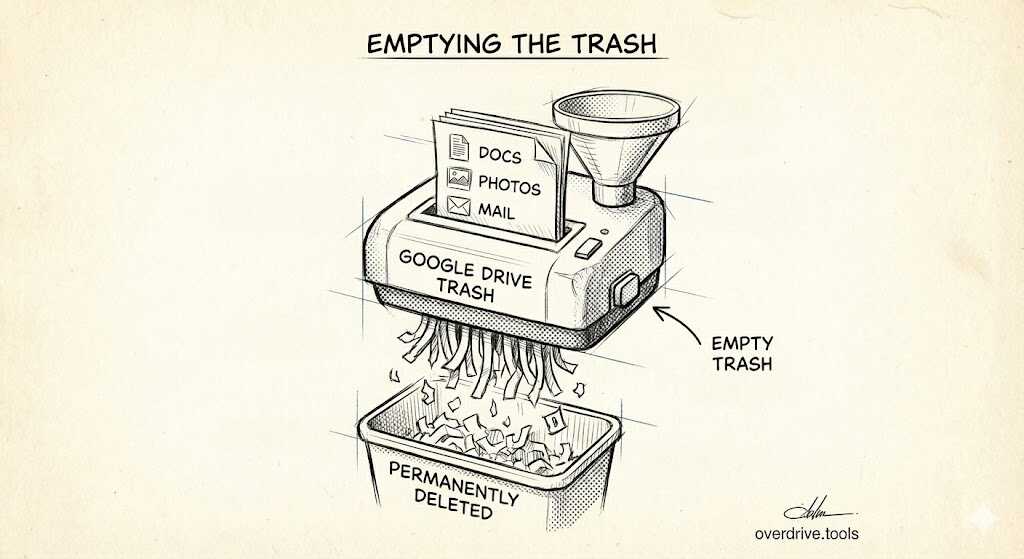
To empty trash in Google Drive, open drive.google.com, click "Trash" in the left sidebar, then click "Empty trash" in the top right corner. This permanently deletes all trashed files and frees up your storage space immediately. Files in trash still count against your 15 GB quota until you empty it.
Why Emptying Trash Matters
When you delete a file in Google Drive, it moves to Trash but continues using your storage quota. Google automatically deletes trashed files after 30 days, but if you're running low on space, waiting a month isn't practical.
Many users don't realize their "full" Google Drive is actually full of trashed files they thought were already deleted. Emptying trash is often the fastest way to reclaim storage—sometimes freeing up several gigabytes in seconds.
How to Empty Trash on Desktop (Web Browser)
Step 1: Go to drive.google.com and sign in to your Google account.
Step 2: In the left sidebar, click "Trash." You may need to scroll down or click "More" to see it.
Step 3: Review the files in your trash. You'll see file names, original locations, and deletion dates.
Step 4: Click "Empty trash" in the top right corner of the screen.
Step 5: Confirm by clicking "Delete forever" in the popup dialog.
All files in trash are now permanently deleted and your storage space is freed immediately.
How to Empty Trash on Mobile (Android)
Step 1: Open the Google Drive app on your Android device.
Step 2: Tap the three horizontal lines (menu icon) in the top left corner.
Step 3: Tap "Trash" from the menu.
Step 4: Tap the three dots (more options) in the top right corner.
Step 5: Tap "Empty trash" and confirm the deletion.
How to Empty Trash on Mobile (iPhone/iPad)
Step 1: Open the Google Drive app on your iOS device.
Step 2: Tap the three horizontal lines (menu icon) in the top left corner.
Step 3: Tap "Trash" from the menu.
Step 4: Tap the three dots (more options) in the top right corner.
Step 5: Tap "Empty trash" and confirm when prompted.
How to Delete Individual Files from Trash
If you want to permanently delete specific files without emptying the entire trash:
Step 1: Open Trash in Google Drive.
Step 2: Right-click (or long-press on mobile) the file you want to permanently delete.
Step 3: Select "Delete forever."
Step 4: Confirm the deletion.
This removes only the selected file while keeping other trashed items intact.
How to Restore Files from Trash
If you accidentally deleted something and haven't emptied the trash yet:
Step 1: Open Trash in Google Drive.
Step 2: Find the file you want to recover.
Step 3: Right-click (or long-press on mobile) the file.
Step 4: Select "Restore."
The file returns to its original location in your Drive. If the original folder was also deleted, the file goes to the root of My Drive.
Emptying Trash in Gmail and Google Photos
Your 15 GB Google storage is shared across Drive, Gmail, and Google Photos. Emptying trash in one service doesn't affect the others—you need to empty each separately.
Gmail Trash:
- Open Gmail
- Click "Trash" in the left sidebar (may be under "More")
- Click "Empty Trash now" at the top
Google Photos Trash:
- Open photos.google.com
- Click "Trash" in the left sidebar
- Click "Empty trash" in the top right
For a complete storage cleanup across all three services, see our Google Drive Storage Cleanup Guide.
What Happens After You Empty Trash
Once you empty trash, the files are permanently deleted from Google's servers. This action cannot be undone through normal means.
For personal Google accounts: Files are gone permanently. There is no recovery option.
For Google Workspace accounts: Administrators can recover deleted files for an additional 25 days after trash is emptied. Contact your IT administrator if you need to recover something.
Your storage quota updates immediately after emptying trash, though it may take a few minutes to reflect in the storage indicator.
Common Issues and Solutions
"Empty trash" button is grayed out or missing: This usually means your trash is already empty. Refresh the page to confirm.
Storage didn't update after emptying trash: Wait a few minutes—storage calculations can take time to sync. If it still doesn't update after an hour, try signing out and back in.
Can't find a file you thought was in trash: Files only stay in trash for 30 days. If more time has passed, the file was automatically deleted. Also check Gmail and Google Photos trash if you're looking for attachments or images.
Trash shows files you don't recognize: These may be files from apps connected to your Drive, or files that were in folders you deleted. If you're unsure what's taking up space in your Drive, Overdrive can scan your entire account and show you exactly what's using your storage—including hidden files, duplicates, and forgotten trash.
Automating Trash Management
Google Drive automatically empties trash after 30 days, but there's no way to change this timeframe or set up more frequent automatic deletion.
If you want more control over cleanup, including automated identification of files that should be trashed in the first place, tools like Overdrive can help you find duplicate files, empty folders, and old files you no longer need—all in one scan.
Frequently Asked Questions
How long do files stay in Google Drive trash?
Files remain in trash for 30 days before Google automatically deletes them permanently. You can empty trash manually at any time to delete them sooner.
Do files in trash count against my storage?
Yes. Trashed files continue using your storage quota until they're permanently deleted, either by emptying trash manually or after the 30-day automatic deletion.
Can I recover files after emptying trash?
For personal accounts, no—emptying trash is permanent. For Google Workspace accounts, administrators may be able to recover files for up to 25 additional days.
Does emptying Google Drive trash affect Gmail or Photos?
No. Each service has its own separate trash. To free up storage across your entire Google account, you need to empty trash in Drive, Gmail, and Photos individually.
Why is my Google Drive still full after emptying trash?
Your storage is shared with Gmail and Google Photos. Check and empty trash in those services too. Also look for large files, email attachments, and hidden app data that may be consuming storage.
Related Guides
- How to Check Your Google Drive Storage Usage
- How to Transfer File Ownership in Google Drive
- How to Remove Someone's Access from Google Drive
title: "How to Empty Trash in Google Drive" slug: "how-to-empty-trash-google-drive" date: "2025-01-04" description: "Learn how to empty your Google Drive trash to permanently delete files and free up storage space. Step-by-step instructions for web, mobile, and bulk deletion." author: "Overdrive Team" image: "/how-to-empty-trash-google-drive.webp" tags: ["Google Drive", "Storage", "Trash", "How-To"] schema: "HowTo"
To empty trash in Google Drive, open drive.google.com, click "Trash" in the left sidebar, then click "Empty trash" in the top right corner. This permanently deletes all trashed files and frees up your storage space immediately.
Empty Trash on Desktop (Web Browser)
- Go to drive.google.com and sign in
- Click "Trash" in the left sidebar (scroll down or click "More" if you don't see it)
- Click "Empty trash" in the top right corner
- Click "Delete forever" to confirm
Done. All files are permanently deleted and storage is freed immediately.
Empty Trash on Android
- Open the Google Drive app
- Tap the menu icon (three lines) in the top left
- Tap "Trash"
- Tap the three dots in the top right
- Tap "Empty trash" and confirm
Empty Trash on iPhone/iPad
- Open the Google Drive app
- Tap the menu icon (three lines) in the top left
- Tap "Trash"
- Tap the three dots in the top right
- Tap "Empty trash" and confirm
Delete Individual Files from Trash
If you only want to permanently delete specific files:
- Open Trash in Google Drive
- Right-click (or long-press on mobile) the file
- Select "Delete forever"
- Confirm the deletion
Other trashed items remain untouched.
Restore Files from Trash
Accidentally deleted something? If you haven't emptied trash yet:
- Open Trash in Google Drive
- Right-click (or long-press) the file
- Select "Restore"
The file returns to its original location. If that folder was also deleted, the file goes to the root of My Drive.
Why This Matters
When you delete a file in Google Drive, it moves to Trash but still counts against your 15 GB storage quota. Google automatically deletes trashed files after 30 days, but if you're running low on space, waiting a month isn't practical.
Many users don't realize their "full" Google Drive is actually full of trashed files they thought were already deleted. Emptying trash is often the fastest way to reclaim storage—sometimes freeing up several gigabytes in seconds.
Don't Forget Gmail and Google Photos Trash
Your 15 GB is shared across Drive, Gmail, and Google Photos. Emptying trash in one service doesn't affect the others.
Gmail Trash:
- Open Gmail
- Click "Trash" in the left sidebar
- Click "Empty Trash now" at the top
Google Photos Trash:
- Open photos.google.com
- Click "Trash" in the left sidebar
- Click "Empty trash" in the top right
For a complete storage cleanup across all three services, see our Google Drive Storage Cleanup Guide.
What Happens After You Empty Trash
Once you empty trash, files are permanently deleted from Google's servers. This cannot be undone.
Personal Google accounts: Files are gone permanently. No recovery option.
Google Workspace accounts: Administrators can recover deleted files for an additional 25 days. Contact your IT admin if needed.
Storage quota updates immediately, though the indicator may take a few minutes to refresh.
Common Issues
"Empty trash" button is grayed out: Your trash is already empty. Refresh the page to confirm.
Storage didn't update: Wait a few minutes for sync. If it persists after an hour, sign out and back in.
Can't find a file in trash: Files auto-delete after 30 days. Also check Gmail and Google Photos trash for attachments or images.
Trash shows files you don't recognize: These may be from apps connected to your Drive, or files inside folders you deleted. If you're unsure what's taking up space, Overdrive can scan your entire account and show exactly what's using storage—including hidden files, duplicates, and forgotten trash.
Automating Cleanup
Google Drive automatically empties trash after 30 days with no way to change this. For more control over cleanup—including finding files that should be trashed in the first place—Overdrive identifies duplicate files, empty folders, and old files you no longer need in one scan.
FAQ
How long do files stay in trash? 30 days before automatic permanent deletion.
Do trashed files count against storage? Yes, until permanently deleted.
Can I recover files after emptying trash? Personal accounts: No. Workspace accounts: Admins may recover within 25 additional days.
Does emptying Drive trash affect Gmail or Photos? No. Each service has separate trash.
Why is Drive still full after emptying trash? Check Gmail and Photos trash too. Also look for large files and hidden app data.