How to Clean Up a Shared Google Drive Without Breaking Team Access
Cleaning up a shared drive isn't like cleaning up your own files, since deleting something the team relies on affects everyone at once. Here's how to do it safely.
Overdrive Team//6 min read
Cleaning up your own Drive is low-risk: if you delete something you shouldn't have, it's your mistake to fix, and it's sitting in your own Trash for 30 days regardless. Cleaning up a shared drive is a different kind of risk entirely, because the files, the ownership, and the consequences of a mistake all belong to the team collectively, not to whoever happens to be doing the cleanup that afternoon.
Why Shared Drives Behave Differently
In a Shared Drive, files are owned by the organization rather than by an individual member. That single structural difference changes almost everything about how cleanup should work. Membership in a Shared Drive gives everyone the same access level to everything inside it, so there's no equivalent of "it's my file, my call" the way there is in My Drive. Deleted files from a Shared Drive go to the Shared Drive's own Trash, not any individual's personal Trash, and depending on the drive's settings, other members may be able to restore something you just removed, or a Manager-level member may need to be the one to permanently delete it.
This matters most for the mistake that trips people up: assuming that because you can see and interact with everything in a Shared Drive, you have the same authority over everything that you would in your own personal Drive. Shared Drive permission levels, Viewer, Commenter, Contributor, Content Manager, and Manager, exist specifically because different team members should have different levels of cleanup authority, not universal delete rights.
What's Actually Safe to Do at Each Access Level
If you're a Contributor, you can add and edit files but typically can't move or delete things wholesale, which is intentional; broad cleanup authority is reserved for Content Managers and Managers for exactly this reason. If you're a Content Manager or Manager, you have real delete authority, which means the responsibility for confirming a file isn't still needed sits with you before you act, not after.
Before deleting anything from a shared drive, check three things: whether anyone has touched the file recently (a quick look at "Last modified" is often enough), whether it's referenced from anywhere else, a linked spreadsheet, a project doc that points to it, and whether removing it affects an active workflow rather than an archived one. None of this is visible just by looking at a file's icon, which is exactly why shared-drive cleanup takes more judgment than personal cleanup does.
A Safer Cleanup Process
Option 1: See what's actually safe to remove before touching anything
Because the risk in a shared drive is removing something the team still relies on, having visibility into what's actually being used, versus what's just sitting there taking up space, matters more here than almost anywhere else in Drive. Overdrive can scan a shared drive and surface duplicates, old large files, and genuinely stale content by age and activity, which gives you a much more confident starting list of what's safe to remove than guessing from file names alone.
Option 2: Archive first, delete second
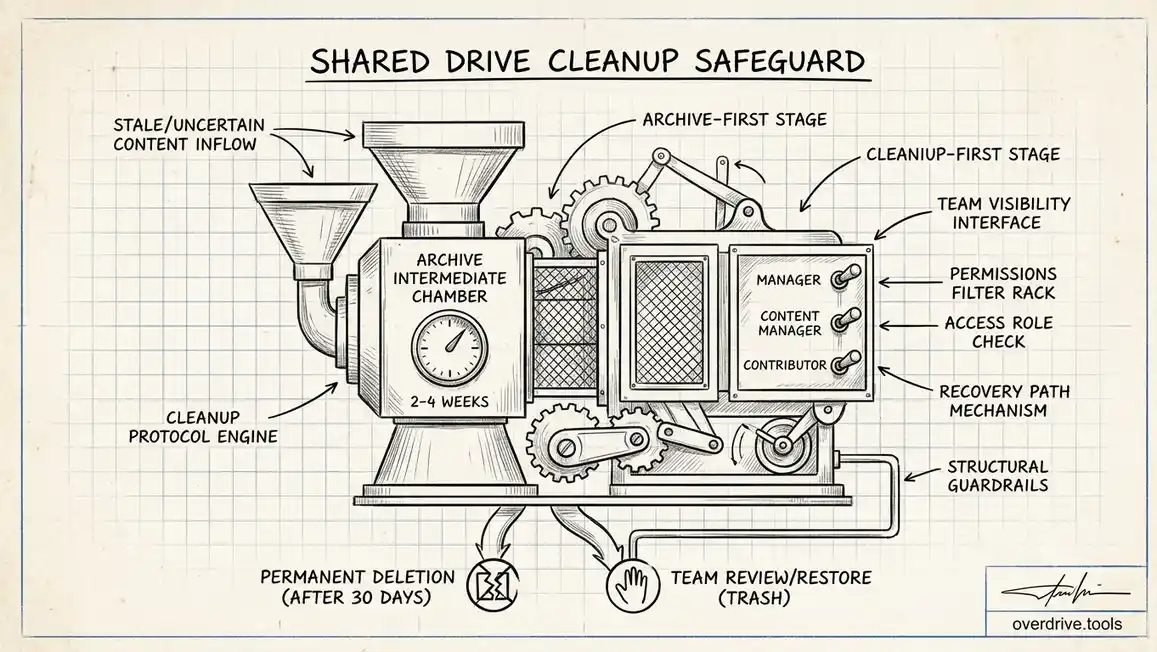
Rather than deleting directly, move candidates for removal into a clearly labeled "Archive" or "To Review" subfolder within the Shared Drive for a set period, two to four weeks is reasonable, before permanently deleting anything. This gives team members a chance to flag "wait, I still need that" without the cleanup effort grinding to a halt waiting for individual sign-off on every file. If nobody raises an issue within the window, proceed with actual deletion.
Option 3: Communicate before large cleanups, not after
For anything beyond routine, small-scale tidying, a short heads-up to the team, even just a message in the relevant channel, saves far more time than it costs. "Cleaning up the old client folder this week, flag anything you still need" takes thirty seconds to send and prevents the far more expensive scenario of someone discovering a file is missing mid-task.
What to Leave Alone Entirely
Some things in a Shared Drive shouldn't be touched during a routine cleanup pass regardless of how old they look: anything under legal hold or compliance retention requirements, template files that look unused but are actually referenced by an automation or integration, and anything owned by a currently active project even if that project has gone quiet for a stretch. When in doubt about whether something falls into one of these categories, ask rather than assume based on the last-modified date alone.
After the Cleanup
Once a cleanup pass is done, it's worth a quick review of the Shared Drive's membership list at the same time, since stale files and stale membership tend to accumulate together. Former team members who still have access, and files nobody's touched in years, are usually symptoms of the same underlying habit: nobody owns the job of periodic upkeep. Assigning that job explicitly to a rotating or specific team member is what actually keeps a shared drive from needing this kind of large cleanup effort again in another year.
Recovering When Something Goes Wrong Anyway
Despite precautions, mistakes happen, and it's worth knowing the recovery path before you need it under pressure. Files removed from a Shared Drive go into that drive's own Trash, not any individual member's personal Trash, and depending on configuration, other members or a Manager can restore from there within the retention window, generally 30 days, same as personal Drive Trash. If a Content Manager or Manager account is the one who deleted something in error, restoring from the Shared Drive's Trash is usually the fastest fix, faster than trying to recreate a document from scratch or chasing down whether anyone kept a local copy.
For anything deleted and already past the Trash retention window, recovery becomes much harder and depends on whether a backup export exists somewhere outside Drive itself. This is one more reason the archive-first approach outlined above is worth the extra step: it adds a second layer of protection beyond Drive's own 30-day window before anything becomes genuinely difficult to recover.
Setting Up Guardrails So This Doesn't Keep Happening
The organizations that avoid repeating painful cleanup cycles tend to build in structural guardrails rather than relying purely on individual judgment during each cleanup pass. Restricting delete permissions to Content Manager and Manager roles only, rather than granting broader delete rights by default, limits how many people can make a costly mistake in the first place. Setting a clear naming convention for anything meant to be temporary or archived (a shared "Archive" or "Old Projects" folder that everyone recognizes) reduces the ambiguity that makes cleanup risky to begin with. And revisiting Shared Drive membership at the same cadence as file cleanup keeps both problems from compounding independently.
Frequently Asked Questions
Who can permanently delete files from a Shared Drive's Trash?
Typically Managers, and in some configurations Content Managers, depending on how the drive's settings are configured. Regular Contributors generally can't skip straight to permanent deletion, which is an intentional safeguard against accidental, unrecoverable loss.
Does moving a file out of a Shared Drive count as deleting it?
No, moving a file to a different location (another Shared Drive, or someone's My Drive, where permissions allow) preserves the file entirely; it just changes where it lives and who has access based on the new location's membership or sharing settings.
What if the team can't agree on what's safe to delete?
When in doubt, default to archiving rather than deleting. The cost of temporarily preserving something uncertain is low; the cost of permanently deleting something someone else needed is not. An archive folder resolves this tension without forcing a decision before everyone's actually confident.
Is there a way to see who deleted a specific file from a Shared Drive?
Workspace admins can check the Drive audit log for deletion events tied to a specific Shared Drive, which shows who removed what and when, useful for both accountability and for reconstructing what happened if a deletion turns out to have been a mistake.
Should a shared drive have a dedicated person responsible for cleanup, or is it a group effort?
A named owner works better in practice than a diffuse group responsibility, even if the actual cleanup work gets delegated or shared. Without someone accountable for the drive's overall health, periodic cleanup tends to fall through the cracks the same way any unowned recurring task does, with everyone assuming someone else will eventually get to it. That person doesn't need to do all the work personally, but having one clear point of accountability is what keeps the archive-first process and the periodic review actually happening on schedule.
Related Articles
- The Ultimate Google Drive Storage Cleanup Guide
- Shared Drive vs My Drive: Key Differences
- Shared Drive Permission Levels Explained