How to Revoke Google Drive Access When Employees Leave
Step-by-step guide to removing Google Drive access when employees or contractors leave. Includes offboarding checklist, bulk removal methods, and ownership transfer.
Overdrive Team//10 min read
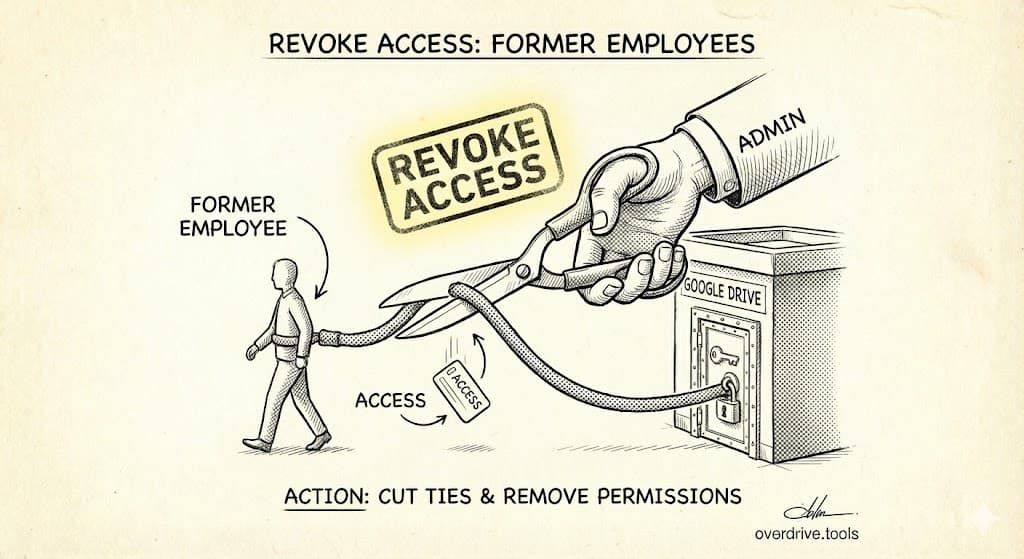
To revoke someone's Google Drive access, search to:their-email@example.com to find all files shared with them, then open each file's sharing settings and remove their email. For faster bulk removal in Google Workspace, admins can transfer file ownership and manage access through the Admin Console. The critical point: access doesn't disappear automatically when someone leaves—you must manually remove it.
When an employee or contractor leaves your organization, they typically retain access to every file they could previously view. Their work account might be deactivated, but any personal email addresses (Gmail, etc.) they used remain active. Those shared folders from their first week? Still accessible. That client proposal they collaborated on? They can still open it.
This guide covers the complete offboarding process for Google Drive access—from finding everything they can access to removing it all and handling file ownership.
Why Access Doesn't Disappear Automatically
Google Drive permissions are persistent by design. When you share a file with someone, that share remains until you explicitly remove it. There's no automatic expiration, no "remove access when they leave," no connection between your HR system and Drive sharing.
This creates a specific risk pattern:
| Scenario | What Happens | Risk |
|---|---|---|
| Work account deactivated | They can't log in with work email | Low (for work-email-only shares) |
| Personal email was also used | Personal account still works | High |
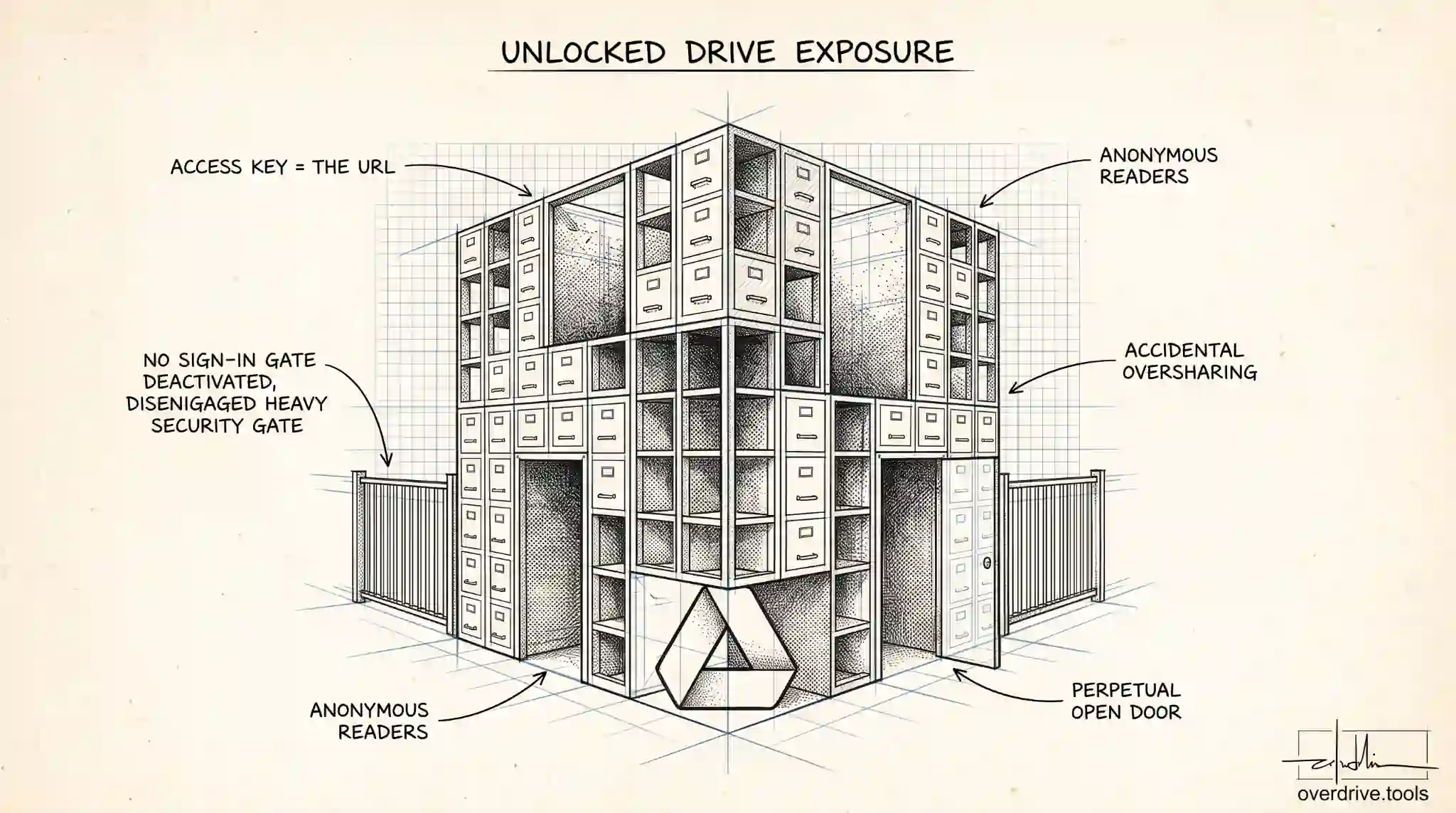
| "Anyone with link" files | They still have the links | High |
| Files downloaded locally | Copies exist on their devices | Permanent (can't be revoked) |
The work account deactivation only helps if ALL sharing was done to their work email exclusively. In practice, people use personal emails for convenience, and link-shared files don't require any email at all.
Before They Leave: The Ownership Question
Before revoking access, handle file ownership. If the departing person owns files that your organization needs, you must transfer ownership before their account is deleted.
Why Ownership Matters
When someone owns a file:
- Only they can delete it permanently
- Only they can transfer ownership to someone else
- If their Workspace account is deleted, owned files may be deleted too (depending on admin settings)
How to Transfer Ownership
For individual files:
- Open the file's sharing settings (right-click > Share)
- Find the current owner
- Click the dropdown next to their name
- Select "Transfer ownership"
- Enter the new owner's email
- The new owner must accept the transfer via email
For Google Workspace admins (bulk transfer):
- Go to admin.google.com
- Navigate to Apps > Google Workspace > Drive and Docs > Transfer ownership
- Enter the current owner's email and the new owner's email
- Select "Transfer" to move all files at once
Important timing: Transfer ownership BEFORE the account is suspended or deleted. Once an account is gone, transferring ownership becomes much harder and may require Google support for Workspace accounts.
What to Transfer
Prioritize transferring:
- Files critical to ongoing projects
- Documents with historical importance (contracts, records)
- Anything that would be hard to recreate
- Files that are actively shared with clients or partners
Don't worry about transferring:
- Personal files (photos, personal documents)
- Drafts and abandoned work
- Duplicates of files that exist elsewhere
Step 1: Find Everything They Can Access
You can't remove access you don't know about. Start by finding every file shared with the departing person.
Search for Direct Shares
In Google Drive, search:
to:employee@company.com
This shows all files shared with their work email. Note: This only finds files shared after February 2021. For older shares, you'll need to check folders manually or use a scanning tool.
If they used a personal email, search that too:
to:employee@gmail.com
Check Shared Folders
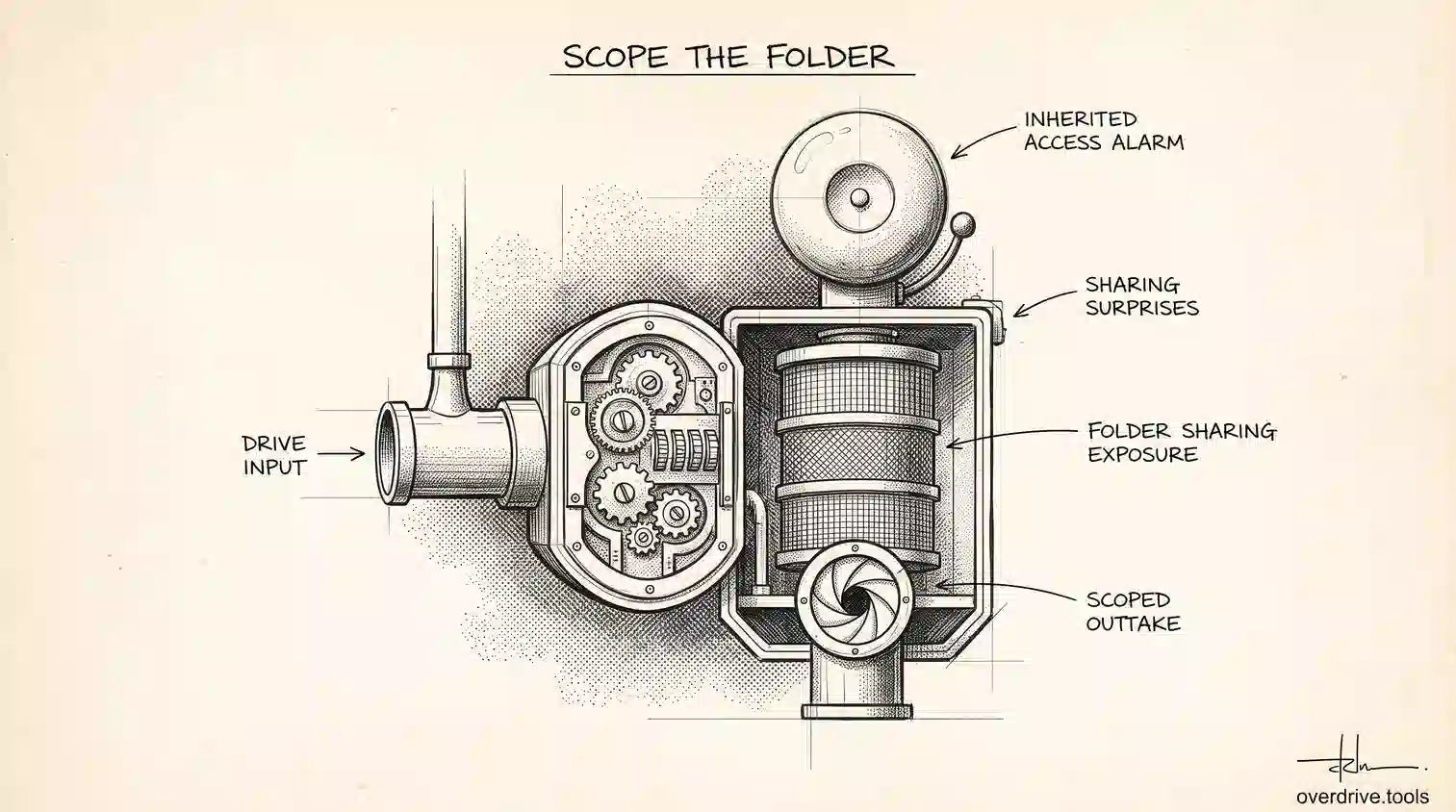
Folder access is sneaky—it grants access to everything inside. Check your major shared folders:
- Right-click each important folder
- Select "Share"
- Look for their email in the access list
If they're on a folder, they can access all contents even if not listed on individual files.
Review Shared Drives (Workspace)
For each Shared Drive they might be a member of:
- Right-click the Shared Drive name
- Select "Manage members"
- Check if they're a member
Shared Drive membership grants access to all files in that drive.
Don't Forget "Anyone With Link" Files
Files they created with "anyone with the link" enabled are still accessible to them (and everyone else who has the link). Search:
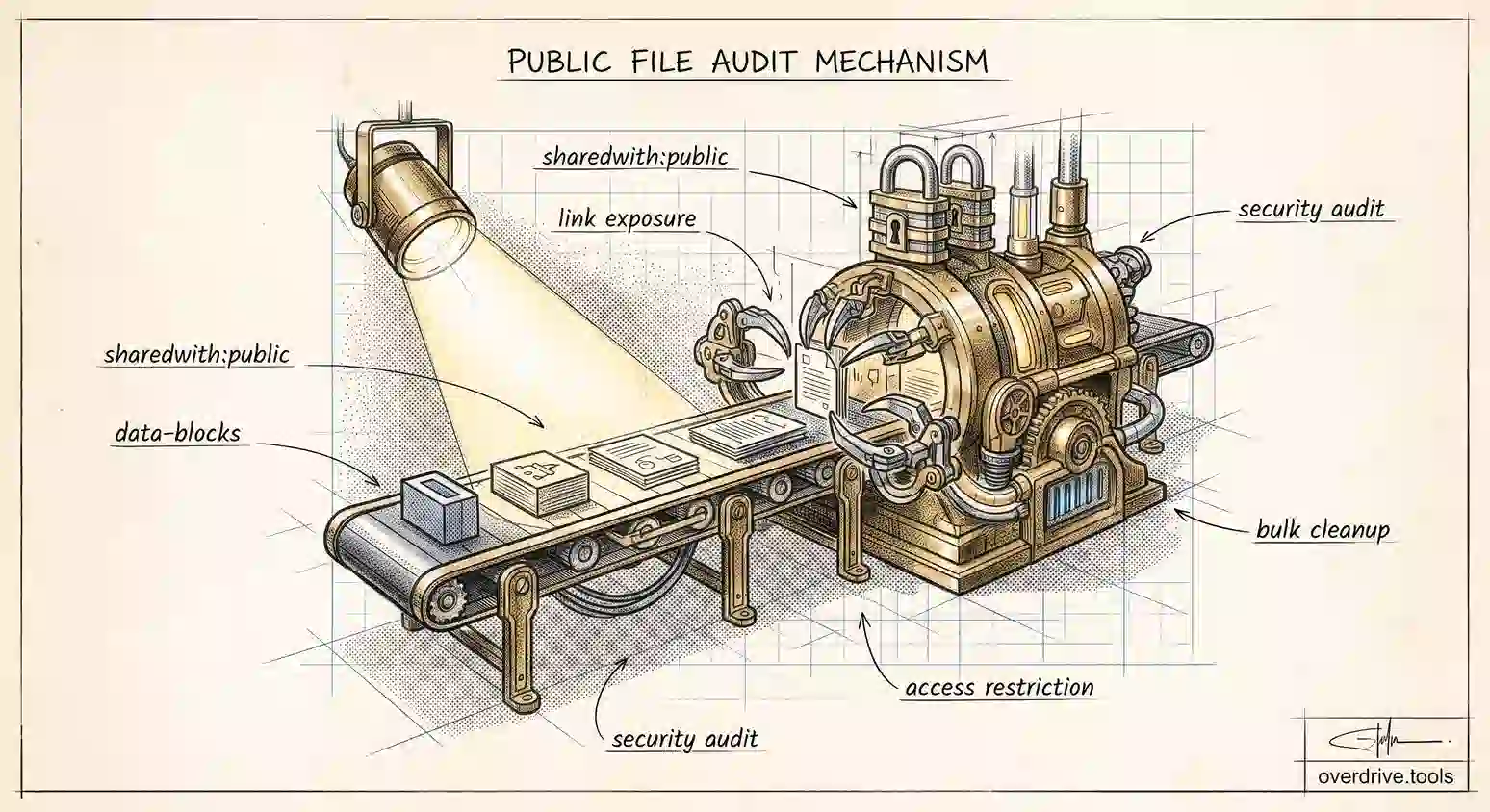
owner:employee@company.com sharedwith:public
These links work forever unless you change the sharing settings on each file.
The Faster Way: Use Overdrive
The manual search process above works but takes time and misses things. You have to search multiple email addresses, check folders individually, review each Shared Drive, and hope you don't forget anything.
Overdrive shows you every file a specific user can access in about two minutes—across all folders, all Shared Drives, all sharing methods. Run a free scan before offboarding to make sure you catch everything, then remove their access with confidence.
For more on finding shared files, see How to Find All Externally Shared Files in Google Drive.
Step 2: Remove Access From Individual Files
Once you've found everything, start removing access.
Removing Access One File at a Time
- Right-click the file
- Select "Share"
- Find their email in the list
- Click the dropdown next to their name
- Select "Remove access"
This works but doesn't scale well if they have access to hundreds of files.
What Happens When You Remove Access
When you remove someone's access:
- They immediately lose the ability to open the file
- If they have the file open in their browser, they'll be blocked on their next action
- They receive no notification that access was revoked
- The file disappears from their "Shared with me" view
- Any bookmarks or shortcuts they have to the file stop working
- Downloaded copies on their devices still work (you can't revoke local copies)
That last point is important: you can't un-download a file. If they've copied files locally before you revoked access, those copies persist. This is why timely offboarding matters—the sooner you revoke access, the less time they have to download.
Step 3: Remove Access From Folders
Removing access at the folder level is more efficient and catches files you might miss individually.
How Folder Removal Works
When you remove someone from a folder:
- They lose access to the folder and all contents
- Files inside that were shared with them individually (separate from the folder) are NOT affected
- Subfolders and their contents follow the parent folder's change
Step-by-Step Folder Removal
- Right-click the folder
- Select "Share"
- Find their email
- Click the dropdown and select "Remove access"
Check for Individual File Shares Inside
After removing folder access, search for files inside that folder that might have individual sharing:
"folder name" to:employee@company.com
If you find files, remove access from those separately.
Step 4: Remove From Shared Drives (Workspace)
Shared Drives require separate handling from "My Drive" content.
Remove Shared Drive Membership
- Right-click the Shared Drive
- Select "Manage members"
- Find their email
- Click the X or "Remove" next to their name
- Confirm removal
This removes access to everything in that Shared Drive.
Check Their Permission Level First
Before removing, note their permission level:
- Manager: They could have changed permissions on files or added other members
- Content Manager: They could have moved or deleted files
- Contributor: They could have added and edited files
- Commenter/Viewer: No content changes possible
If they were a Manager, audit what changes they might have made—they could have shared files externally or given access to others you don't know about.
Step 5: Handle "Anyone With Link" Files They Created
Files the departing person set to "anyone with the link" remain accessible to anyone with the URL, including them.
Find Their Link-Shared Files
Search:
owner:employee@company.com visibility:anyoneWithLink
Decide for Each File
For each result:
- Needs to stay link-shared: Transfer ownership first, then decide if link sharing is still appropriate
- Should be restricted: Transfer ownership, then change "General access" to "Restricted"
- Should be deleted: Transfer ownership (if the file is needed), then delete
Transfer Ownership First
You can't change sharing settings on files you don't own. Either:
- Have them change the settings before they leave
- Transfer ownership to someone who can change settings
- Have a Workspace admin make changes (admins have elevated permissions)
The Complete Offboarding Checklist
Use this checklist when someone leaves your organization.
Before Last Day
- Identify critical files they own that need to be transferred
- Transfer ownership of needed files to appropriate team members
- Have them document any files/folders others might need
- (Optional) Run an Overdrive scan to see everything they can access
On Last Day
- Search
to:employee@company.comand record all shared files - Search personal email if known:
to:employee@gmail.com - Check membership in all relevant Shared Drives
- Review major shared folders for their access
Access Removal
- Remove from all Shared Drives
- Remove from all shared folders (starting with top-level)
- Remove from individual files not covered by folders
- Address "anyone with link" files they created
After Removal
- Verify removal by searching again for shares to their email (should return no results)
- Document what was removed and when
- Update any shared passwords or credentials they knew
- Review any external services they had access to
Account Actions (Workspace Admin)
- Suspend the user account (preserves data while blocking access)
- Set up email forwarding/delegation if needed for transition
- Transfer remaining file ownership
- Remove from Google Groups
- Delete account when appropriate (after data preservation)
Bulk Removal Methods
Removing access file-by-file doesn't scale. Here are faster approaches.
Method 1: Focus on Folders First
Instead of removing access to 200 files, find the 10 folders that contain them. Removing folder access is one action that affects all contents.
Method 2: Use Google Apps Script (Technical)
For technical users, Apps Script can automate removal:
function removeUserAccess() {
  var userToRemove = 'employee@company.com';
  var files = DriveApp.searchFiles('to:' + userToRemove);

  while (files.hasNext()) {
    var file = files.next();
    try {
      file.revokePermissions(userToRemove);
      Logger.log('Removed access: ' + file.getName());
    } catch (e) {
      Logger.log('Could not remove: ' + file.getName() + ' - ' + e.message);
    }
  }
}
This script finds all files shared with the specified user and removes their access. Run it from script.google.com connected to your Drive.
Caution: Test on a small set first. You can't undo bulk removal easily.
Method 3: Workspace Admin Console
Admins have additional powers:
- Transfer all file ownership before account deletion
- Suspend/delete the account (removes their ability to access via that email)
- Use third-party tools integrated with Workspace for bulk operations
Special Cases
They Used Multiple Email Addresses
Many people access files through multiple emails—work, personal, maybe a second personal account. Search for all known emails:
to:work@company.com
to:personal@gmail.com
to:other@email.com
They Were in Google Groups
If files were shared with a Google Group they belong to, removing them from the Group also removes their access to Group-shared files.
Check Groups membership in Admin Console or groups.google.com.
They Created Files in Their Personal Drive
Files they created in their personal Drive (not your Workspace) and shared with you are theirs. When they leave:
- They still own those files
- They could unshare them at any time
- You should copy any important files to your own Drive for safety
Contractor With Their Own Workspace
Contractors often use their own company's Google Workspace. Files shared with them are in your Drive, but you can't see or control what they've downloaded or copied to their own Drive.
For sensitive projects, consider:
- Using Shared Drives where your org retains ownership
- Having contracts that address data handling and return
- Watermarking sensitive documents
Timing Matters
When you revoke access affects your security:
| Timing | Risk Level | Recommendation |
|---|---|---|
| Same day as departure | Low | Ideal for all situations |
| Within 1 week | Medium | Acceptable for friendly departures |
| Weeks later | High | Significant download/copy risk |
| Never | Critical | Ongoing unauthorized access |
For sensitive roles (finance, HR, executives, IT, anyone with access to confidential data), same-day removal is essential. For others, aim for same-day but within a week at most.
Documenting the Offboarding
Keep records of what you did. This matters for:
- Compliance requirements (SOC 2, HIPAA, GDPR, etc.)
- Audit trails
- Legal protection
- Future reference
Document:
- Date of access removal
- Who performed the removal
- What access was removed (summary)
- Any files transferred and to whom
- Any unusual findings (sensitive files with broad access, etc.)
Frequently Asked Questions
Will they get notified when I remove their access?
No. Google Drive doesn't send notifications when access is revoked. The file simply becomes inaccessible next time they try to open it. There's no "you've been removed" email.
What if they're the owner of files I need?
Transfer ownership before removing access. If their account is still active, you can request ownership transfer. If the account is suspended/deleted, Workspace admins can transfer ownership of Workspace-account files via the Admin Console.
Can they still access files in their browser cache?
No. Browser cache doesn't help them. Google Drive files are accessed from Google's servers each time. When you remove access, the next time they try to load the file (even if it appears "cached"), they'll be blocked. The file content isn't stored locally in a usable way.
What about Google Docs they exported to PDF or Word?
Downloaded copies are outside your control. You can't revoke access to a file someone has saved locally. This is why prompt offboarding matters—minimize the window for downloading.
Should I change file links they might have saved?
You can't change existing file URLs in Google Drive. But if you change a file from "anyone with the link" to "restricted," the old link becomes useless—it still points to the file but won't grant access without explicit permission.
What if I accidentally remove the wrong person's access?
You can re-add access using their email address. There's no "undo" button, but re-adding them achieves the same result. They won't be notified of either the removal or re-addition.
Keep Reading
- The Complete Google Drive Security Audit Checklist — Full framework for Drive security including regular audits
- Who Has Access to Your Google Drive? Here's How to Find Out — Understanding permission levels and access visibility