How to Finally Organize Your Google Drive (2026 Guide)
Stop losing files in Google Drive chaos. This guide covers folder structures, naming conventions, and systems that keep your Drive organized permanently—not just temporarily.
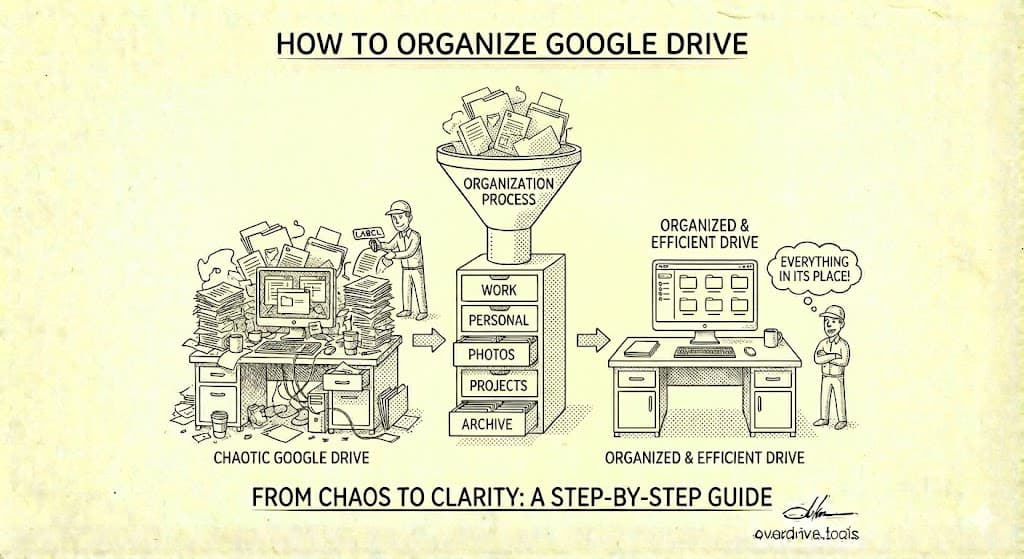
To organize Google Drive effectively, create a clear folder structure with 5-7 top-level folders, use consistent naming conventions with dates (YYYY-MM-DD format), and establish a weekly filing routine. The key isn't the perfect system—it's a system you'll actually maintain. Most Drive chaos comes from saving files without a plan, not from having too many files.
If your Google Drive feels like a digital junk drawer, you're not alone. Years of "I'll organize this later" have left most people with thousands of files scattered across random folders, duplicates everywhere, and no idea where anything is. This guide gives you a system that actually works—one you can implement in an afternoon and maintain without constant effort.
Why Your Drive Is a Mess (It's Not Just You)
Understanding why organization fails helps you build a system that won't.
The Default Behavior Problem
Google Drive makes it incredibly easy to create files and incredibly easy to lose them. When you create a new Google Doc, it goes to the root of your Drive unless you actively choose a location. When you receive a shared file, it shows up in "Shared with me" but not in any organized location. When you download and upload, files land wherever you happened to be.
There's no friction to creating clutter and significant friction to organizing.
The Maintenance Problem
Most organization systems fail because they require constant maintenance that doesn't fit into your workflow. If organizing files takes time and effort, you'll do it for a week, then stop.
The solution: build organization into file creation, not file cleanup.
The Perfectionism Problem
People often avoid organizing because they want to find the "perfect" system first. They research folder structures, read productivity blogs, try to optimize before starting.
Meanwhile, files pile up.
Any reasonable system you implement today is better than the perfect system you implement never. Start simple, adjust as needed.
The Foundation: Your Folder Structure
A good folder structure is:
- Shallow: 2-3 levels deep maximum for most files
- Intuitive: You can guess where a file should go without thinking
- Complete: Every file has an obvious home
- Stable: Categories don't change frequently
The 5-7 Top-Level Folder Rule
Keep your top level simple. Research on cognitive load suggests 5-7 categories are ideal—enough to be comprehensive, few enough to scan quickly.
Example structure for personal use:
📁 My Drive
├── 📁 Finance
├── 📁 Health
├── 📁 Home
├── 📁 Personal Projects
├── 📁 Reference
├── 📁 Travel
└── 📁 Work
Example structure for freelancers:
📁 My Drive
├── 📁 Active Clients
├── 📁 Archive
├── 📁 Business Operations
├── 📁 Marketing
├── 📁 Resources & Templates
└── 📁 Past Clients
Example structure for small teams:
📁 My Drive
├── 📁 Active Projects
├── 📁 Client Files
├── 📁 Internal Operations
├── 📁 Reference Materials
├── 📁 Templates
└── 📁 Archive
Second-Level Structure
Within each top-level folder, add subfolders as needed. Keep these consistent and logical.
Example: Finance folder
📁 Finance
├── 📁 2024
│   ├── 📁 Banking
│   ├── 📁 Investments
│   └── 📁 Taxes
├── 📁 2025
│   ├── 📁 Banking
│   ├── 📁 Investments
│   └── 📁 Taxes
└── 📁 Insurance
Example: Active Clients folder
📁 Active Clients
├── 📁 Acme Corp
│   ├── 📁 Contracts
│   ├── 📁 Deliverables
│   └── 📁 Communications
├── 📁 Beta Industries
│   ├── 📁 Contracts
│   ├── 📁 Deliverables
│   └── 📁 Communications
When to Create More Subfolders
Add a subfolder when:
- You have 20+ files that could be grouped logically
- You'll frequently need to find files in that category
- The grouping is stable and won't change often
Don't create a subfolder when:
- You only have 2-3 files in that category
- You're trying to predict future needs
- The category might not persist
Start with fewer folders. Add more as actual needs emerge.
Naming Conventions That Work
Consistent file naming is often more valuable than folder structure. A well-named file is findable even in the wrong folder.
The Date-First Pattern
For files that have versions or are time-specific, start with the date:
YYYY-MM-DD Description
Examples:
2025-01-02 Project Proposal - Acme Corp2025-01-15 Meeting Notes - Q1 Planning2025-02-01 Invoice #1234
This format:
- Sorts chronologically by default
- Is unambiguous (no MM/DD vs DD/MM confusion)
- Makes finding "that file from last month" easy
The Category-First Pattern
For reference files that don't change, lead with the category:
Category - Specific Description
Examples:
Contract - Acme Corp - 2024Template - InvoiceGuide - Employee Onboarding
Version Naming
For files that go through revisions:
Filename v1
Filename v2
Filename v2.1
Filename FINAL
Or better, use date-based versioning:
Project Proposal 2025-01-02
Project Proposal 2025-01-15
Project Proposal 2025-01-20 FINAL
Pro tip: If you're in Google Docs/Sheets/Slides, use version history instead of saving new files. It's built-in, automatic, and doesn't create clutter.
What NOT to Put in Filenames
Avoid:
- Special characters:
/ \ : * ? " < > |can cause problems - Very long names: Some systems truncate long filenames
- Vague names: "Document1," "Untitled," "Final final v2"
- All caps: MAKES FILES HARDER TO SCAN
Implementing Your System
Phase 1: Set Up the Structure (30 Minutes)
Don't reorganize existing files yet. First, create your new structure.
- Create your top-level folders in My Drive
- Create essential second-level folders
- Bookmark this structure (or add it to quick access)
- Start using it for all new files immediately
Phase 2: Clean the Incoming Stream (Ongoing)
From this moment forward, every new file goes into the correct folder:
- When creating a new document, choose the location first
- When downloading files, move them immediately after download
- When receiving shared files, add them to appropriate folders if you'll need them
This stops new chaos from accumulating.
Phase 3: Process the Backlog (Gradual)
Don't try to organize 5 years of files in one session. Instead:
Option A: Gradual migration
- Spend 15 minutes daily moving files
- Start with recently modified files (most likely to be needed)
- Work backward in time
Option B: Archive and move on
- Create a folder called "Archive - Pre-Organization"
- Move everything old into it
- When you need an old file, retrieve it, then file it correctly
- Files you never retrieve can stay in the archive
Option C: Use a tool
Overdrive scans your Drive and shows you duplicates, empty files, and organization issues at a glance. The free scan helps you identify what needs attention before you spend hours manually reviewing files.
Phase 4: Maintain (Weekly)
Build a weekly review habit:
- Every Friday (or any consistent time): Process any unfiled items
- Move downloads into correct folders
- Delete files you no longer need
- This should take 5-10 minutes if done weekly
Special Situations
Shared Files and Folders
When someone shares a file or folder with you:
- If it's a file you'll reference regularly: Add it to your structure with "Add shortcut to Drive"
- If it's a one-time access: Leave it in "Shared with me"
- If it's a collaborative folder: Add a shortcut to your relevant project folder
Don't copy shared files unless you need your own version—copies create sync issues and duplicates.
Collaborative Projects
For projects with multiple people:
- Create a dedicated folder for the project
- Share the entire folder (not individual files) with collaborators
- Agree on a naming convention everyone follows
- Consider using a Shared Drive (Google Workspace) for true shared ownership
Archive Strategy
Not everything needs to be immediately accessible. Create an archive strategy:
📁 Archive
├── 📁 2022
├── 📁 2023
├── 📁 2024
└── 📁 Old Projects
When to archive:
- Projects completed more than 6-12 months ago
- Reference files you rarely access
- Old versions of files (keep the current version in the main structure)
Archiving keeps your active folders clean while preserving files you might need someday.
Dealing with Common Chaos
Duplicate Files
Duplicates accumulate from:
- Downloading the same file multiple times
- Creating copies "just in case"
- Syncing issues
- Email attachments saved multiple times
Finding duplicates manually is tedious. For a large cleanup, consider tools like Overdrive that automatically identify and group duplicate files—including ones with different names but identical content.
"Untitled" Files
Search for: name:Untitled
These are Google Docs/Sheets/Slides you created and never named. Review each one:
- If it has content, name it properly and file it
- If it's empty or useless, delete it
Files in the Root
Files sitting directly in "My Drive" (not in any folder) create visual clutter. Process these first when cleaning up—they're the most visible chaos.
Empty Folders
Empty folders are clutter too. Delete folders that have no files and no clear future purpose. We cover finding these in How to Find and Delete Empty Folders in Google Drive.
Folder Structure Best Practices
For detailed guidance on structuring folders specifically, see our companion guide: Google Drive Folder Structure: Best Practices.
Key principles:
- Broad categories first, narrow later: Start with big buckets, subdivide as needed
- Action-based over topic-based: "Active Projects" vs "Archive" is often more useful than purely topical categories
- Time-based folders for recurring items: Yearly folders for taxes, monthly folders for reports
- Consistent depth: Don't have some folders 5 levels deep and others 1 level
- Obvious names: Someone new should be able to guess what's in each folder
Making It Stick
Organization systems fail when they're too different from your natural behavior. Make yours sustainable:
Reduce Decision Friction
For every file, the answer to "where does this go?" should be obvious. If you frequently hesitate, your categories might be too granular or overlapping.
Use Quick Access
Star your most-used folders so they appear in Quick Access. This reduces clicks and makes proper filing faster than dumping files in the root.
Create Templates
If you frequently create similar files (invoices, meeting notes, project plans), create templates and store them in a Templates folder. New files start organized because they begin as copies of already-organized templates.
Connect to Other Systems
If you use a task manager, project management tool, or note-taking app, align your Drive structure with those systems. Consistent categories across tools reduce cognitive overhead.
Frequently Asked Questions
How deep should my folder structure go?
For most files, 2-3 levels is ideal. Deeper nesting makes navigation tedious and filing decisions complex. If you need more than 3 levels frequently, consider whether your categories are too granular.
Should I organize by project, date, or type?
It depends on how you think about and search for files. Most people benefit from project/topic as the primary organization, with date-based naming or subfolders for chronological files within projects.
What about tags/labels/colors?
Google Drive supports color-coding folders (right-click → Organize → Change color) and starring files. These can supplement folder organization but shouldn't replace it. Use colors for at-a-glance status (red = urgent, green = complete) if that helps you.
How do I handle files that could go in multiple folders?
Pick the primary location and use "Add shortcut to Drive" to create shortcuts in secondary locations. This keeps the file in one place (avoiding sync issues) while making it accessible from multiple folders.
Should I organize by year?
For time-sensitive materials like finances, taxes, and annual reports—yes. For ongoing projects and reference materials—usually no. Yearly folders work when the content is clearly bounded by time; they add unnecessary navigation when content spans years.
How often should I reorganize?
If your system is working, never. A good organization system evolves incrementally—you add folders as needs emerge and archive old content regularly. If you find yourself wanting to "reorganize everything," it might indicate your initial structure isn't working for how you actually use files.
Keep Reading
- Google Drive Folder Structure: Best Practices — Detailed folder structure patterns for different use cases
- How to Find and Delete Empty Folders in Google Drive — Cleaning up structural clutter
- The Complete Google Drive Security Audit Checklist — Organization improves security too