The Complete Google Drive Security Audit Checklist (2026)
Audit your Google Drive security in 30 minutes. Find public files, remove unauthorized users, and fix permission issues with this step-by-step checklist.
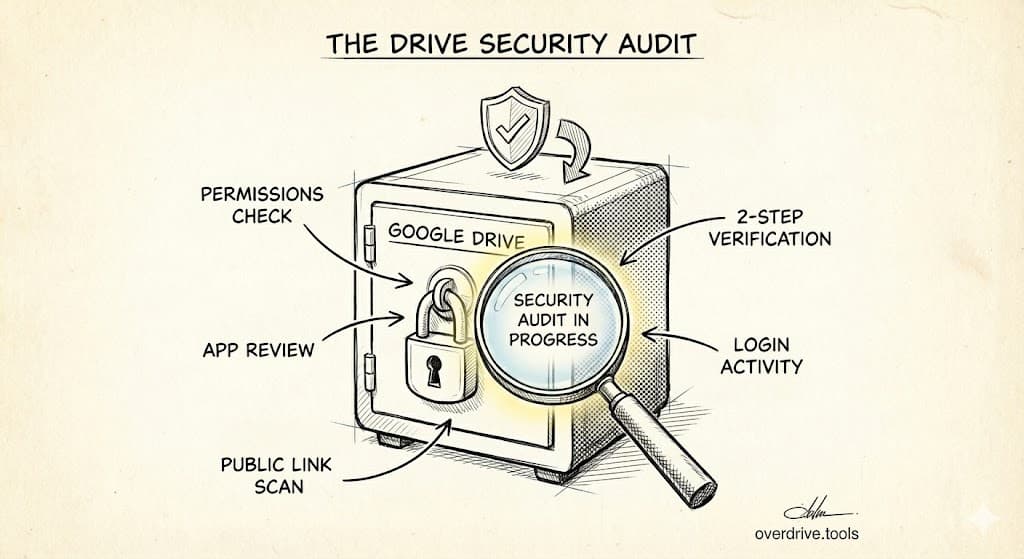
A Google Drive security audit is a systematic review of who has access to your files, which files are shared publicly, and what permission gaps put your data at risk. Most Google Drive users have files shared with people who no longer need access—former clients, past contractors, ex-employees, or random collaborators from years ago. A security audit finds and fixes these vulnerabilities.
This checklist walks you through the complete audit process, from identifying publicly exposed files to removing access from users who shouldn't have it. The entire process takes 30-60 minutes for personal drives, longer for business accounts with years of accumulated sharing.
Why Your Google Drive Needs a Security Audit
Google Drive makes sharing easy. Too easy. Every time you click "Share" or generate a link, you create a potential security gap that persists until you manually close it.
Consider what accumulates over time:
- That proposal you shared with a prospect who never became a client
- The folder your freelance designer accessed two years ago
- Files set to "anyone with the link" for a quick share that you forgot about
- Documents shared with former employees who still have their personal Gmail accounts
- Collaborative folders with clients whose projects ended years ago
None of these permissions expire automatically. They remain active until you revoke them.
The risks compound for businesses. Studies on cloud security consistently find that organizations have thousands of files with external sharing enabled, and most don't know which files are exposed. The situation isn't better for individuals—most personal Google Drives contain dozens of files accessible to people who have no current reason to view them.
When to Run a Security Audit
At minimum, audit your Google Drive:
- Quarterly for business accounts
- Every 6 months for active personal accounts
- Immediately after an employee or contractor leaves
- Before starting work with a new client (clean house first)
- After any project ends that involved external collaboration
If you've never audited your Drive, start now. The first audit takes longest because you're dealing with years of accumulated sharing.
Part 1: Find Out Who Has Access to Your Files
Before you can fix permission issues, you need to see them. Google Drive doesn't make this easy—there's no single view showing all users with access to any file in your Drive.
Check Individual File Permissions
For any file or folder, right-click and select "Share" (or click the person-with-plus icon). This opens the sharing panel showing everyone with direct access to that specific item.
You'll see these permission levels:
- Owner: Full control, can delete or transfer ownership
- Editor: Can modify content and share with others (unless restricted)
- Viewer: Can only view, not edit or share
- Commenter: Can view and add comments, but not edit
Pay attention to how access was granted:
- Specific people: Access given to individual email addresses
- Anyone with the link: Anyone who has or obtains the URL can access the file
- Public: The file is indexed and searchable on the internet
The problem with checking files individually is scale. If you have thousands of files, this approach doesn't work.
Find All Shared Files at Once
Google Drive's search bar accepts operators that filter by sharing status:
sharedwith:public— Files shared with "anyone with the link" or publicsharedwith:external— Files shared outside your organization (Workspace)to:email@example.com— Files you've shared with a specific person
Note: The to: operator only finds files shared after February 2021. For older shares, you'll need to check files individually or use a comprehensive scanning tool.
For a complete picture of external sharing across your entire Drive, you'll need either manual searching with these operators or a tool that can scan and report on sharing status across all files.
The manual approach works, but it's time-consuming and easy to miss things. Overdrive scans your entire Drive in about two minutes and shows every shared file, every user with access, and every permission issue in one dashboard—for free. You can then decide what to fix.
We cover the detailed search process in our guide on how to find externally shared files in Google Drive.
Identify All Users With Access
Make a list of everyone who has access to anything in your Drive. This becomes your audit roster.
For each person, ask:
- Do they still need access to anything?
- If yes, which specific files or folders?
- What permission level do they actually need? (Most people need Viewer, not Editor)
Common categories of users to review:
| User Type | Typical Issue | Action |
|---|---|---|
| Former employees | Still have access via personal email | Remove all access |
| Past contractors/freelancers | Project ended, access remains | Remove or limit to portfolio items |
| Former clients | Shared folders from old projects | Remove or archive |
| "Anyone with link" | Files exposed indefinitely | Restrict to specific people or remove |
| Unknown emails | Shared so long ago you don't remember | Review and likely remove |
For a detailed walkthrough of finding every user with access, see Who Has Access to Your Google Drive? Here's How to Find Out.
Part 2: Identify High-Risk Files
Not all shared files carry equal risk. Prioritize your audit by identifying files that would cause the most damage if accessed by the wrong person.
Public Files (Anyone With the Link)
These are your highest-risk items. Anyone with the URL can access them—and URLs can be shared, forwarded, or leaked.
To find them:
- In Google Drive search, enter:
sharedwith:public - Review every result
To see only files you own that are publicly shared:
owner:me sharedwith:public
For each public file, decide:
- Should it be public? Some files legitimately need link sharing (public resources, downloadable assets)
- Can you restrict it? Change to specific people if you know who needs access
- Should it exist? Old files with outdated information might be better deleted
Files that should almost never be "anyone with the link":
- Financial documents (invoices, contracts, pricing)
- Personal information (addresses, phone numbers, IDs)
- Client deliverables (after project completion)
- Internal business documents
- Anything containing passwords or credentials
Files Shared With External Domains
If you use Google Workspace for business, files shared outside your organization's domain represent data leaving your controlled environment.
Review files shared with:
- Personal Gmail addresses (including employees' personal emails)
- Client or vendor domains
- Unknown or unrecognized domains
External sharing isn't inherently bad—it's how business collaboration works. But external shares should be intentional and current, not leftover from forgotten projects.
Sensitive File Types
Certain files deserve extra scrutiny regardless of current sharing status:
- Spreadsheets with financial data: Budgets, revenue, pricing, payroll
- Documents with personal information: Contracts with addresses, employee records, customer data
- Strategic documents: Business plans, product roadmaps, competitive analysis
- Credentials: Any file containing passwords, API keys, or access tokens (these shouldn't exist in Drive, but often do)
Search for these by name or content:
budgetorfinancialpasswordorcredentialscontractoragreementemployeeorpayroll
Review sharing settings on every match.
Part 3: Remove Unauthorized Access
With your audit complete, you know who has access and which files are exposed. Now fix it.
Revoke Access From Specific People
To remove someone's access to a file or folder:
- Right-click the item and select "Share"
- Find the person's email in the sharing list
- Click the dropdown next to their name
- Select "Remove access"
For folders, removing access at the folder level revokes access to everything inside it—unless individual files within have their own separate sharing settings.
Handle Former Employees and Contractors
When someone leaves your organization or finishes their contract, they typically keep access to everything they could previously view. Personal Gmail accounts persist even after work accounts are deactivated.
Your offboarding checklist should include:
- Identify all files they own — You may need to transfer ownership before their account closes
- Find all files shared with them — Search for
to:their-email@example.com - Revoke access to everything — Remove their email from all sharing lists
- Check shared folders — Access to a folder means access to its contents
- Review "anyone with link" files they created — They still have those links
For organizations doing this regularly, we've written a complete guide: How to Revoke Google Drive Access When Employees Leave.
Change Public Files to Restricted
For files currently set to "anyone with the link" that should be restricted:
- Right-click the file, select "Share"
- Under "General access," change from "Anyone with the link" to "Restricted"
- Add specific people who need access by email
If many people legitimately need access but you want control, consider:
- Creating a Google Group and sharing with the group
- Using a shared folder with specific members instead of individual file links
- For public resources, moving to intentional public hosting rather than accidental Drive sharing
Document Your Changes
Keep a record of your audit:
- Date of audit
- Number of files reviewed
- Users whose access was revoked
- Public files that were restricted
- Any issues found that need follow-up
This record helps with future audits and demonstrates security diligence if ever needed for compliance.
Part 4: Audit Shared Drives (Google Workspace)
If you use Google Workspace, Shared Drives add another layer to audit. Unlike "My Drive" where you own everything, Shared Drives have organizational ownership and their own permission structures.
Shared Drive Permission Levels
Shared Drives use a different permission model than My Drive:
- Manager: Full control including member management and deletion
- Content Manager: Can add, edit, move, and delete files
- Contributor: Can add and edit, but not move or delete
- Commenter: Can view and comment only
- Viewer: Can view only
Audit Each Shared Drive
For every Shared Drive:
- Right-click the Shared Drive name and select "Manage members"
- Review the member list—who has access and at what level?
- Check for external members (outside your organization)
- Look for "anyone with the link" sharing on individual files within
- Verify permission levels match actual job requirements
Common issues in Shared Drives:
- Over-permissioned users: Everyone is a Manager when most should be Contributors
- Forgotten external users: Clients or vendors added for past projects
- Mixed sensitivity levels: Confidential and public files in the same Shared Drive
Shared Drive Hygiene
Best practices:
- Create separate Shared Drives for different sensitivity levels
- Use descriptive names that indicate content type
- Review membership quarterly
- Establish clear ownership for each Shared Drive
Part 5: Set Up Ongoing Security Practices
A single audit helps, but sustainable security requires ongoing practices.
Enable Alerts for External Sharing
In Google Workspace Admin Console (for business accounts), administrators can:
- Receive alerts when files are shared outside the domain
- Require approval for external sharing
- Block sharing with specific domains
- Disable "anyone with the link" sharing entirely
These settings prevent new security gaps from forming.
Create a Sharing Policy
Document your organization's rules for sharing:
- What can be shared externally?
- Who approves external sharing?
- How long should external access last?
- What requires "Viewer" vs "Editor" access?
Even if you're a solo user, having personal guidelines helps maintain consistency.
Schedule Regular Audits
Add recurring calendar reminders:
- Monthly: Quick check of recent external shares
- Quarterly: Full permission review using this checklist
- Annually: Comprehensive audit including file organization and storage review
Regular small audits are easier than infrequent large ones.
Part 6: Connect Security to Storage and Organization
Security audits often reveal broader issues with how your Drive is organized. Files end up shared with the wrong people partly because files end up in the wrong places.
Security and Storage Overlap
When auditing permissions, you'll find:
- Duplicate files with different sharing settings—which version has the right permissions?
- Old files that should have been deleted but instead accumulated sharing over time
- Large files shared publicly that increase exposure
A storage cleanup often improves security by reducing the number of files that could be improperly shared. See The Ultimate Google Drive Storage Cleanup Guide for the complete process.
Security and Organization Overlap
Poor organization creates permission sprawl:
- Files scattered across folders get inconsistent sharing
- No folder structure means no inheritance of permissions
- Duplicates in multiple locations with different access
Organizing your Drive properly makes permission management sustainable. Our guide on How to Organize Your Google Drive covers structure and systems that support security.
The Complete Security Audit Checklist
Use this checklist to perform your audit. Check off each item as you complete it.
Preparation
- Schedule 30-60 minutes of uninterrupted time
- Open Google Drive in a desktop browser
- Have a document ready to record findings
Part 1: Find All Users With Access
- Search for publicly shared files using
owner:me sharedwith:public - Search for externally shared files using
sharedwith:external(Workspace) - Create a list of all external users with access to any file
- Identify users who no longer need access (former clients, contractors, employees)
Part 2: Identify High-Risk Files
- Review all "anyone with the link" files
- Check files shared with external domains
- Search for sensitive files (financial, personal info, credentials)
- Flag high-risk items for immediate action
Part 3: Remove Unauthorized Access
- Revoke access for users who no longer need it
- Change public files to restricted where appropriate
- Update permission levels (Editor → Viewer where possible)
- Document all changes made
Part 4: Shared Drives (If Applicable)
- List all Shared Drives you manage or have Manager access to
- Review membership and permission levels for each
- Check for external members
- Remove access for users who don't need it
Part 5: Establish Ongoing Practices
- Enable external sharing alerts (Workspace Admin)
- Create or update your sharing policy
- Schedule next audit on calendar
Frequently Asked Questions
How often should I audit Google Drive permissions?
For business accounts, audit quarterly at minimum and immediately after any employee or contractor departure. Personal accounts benefit from audits every six months. If you've never audited before, do it now—the first audit addresses years of accumulated sharing.
Can I see everyone who has access to all my files at once?
Google Drive doesn't provide a single view of all users with access across all files. You can either check files individually, use search operators to find shared files, or use a tool like Overdrive that scans your entire Drive and shows all users with access in one dashboard.
What happens when I remove someone's access?
They immediately lose the ability to open the file. If they have the file open when you remove access, they'll be blocked on their next action. They receive no notification that access was revoked. Any copies they've already downloaded remain on their device.
How do I find files shared with a specific person?
Use the search operator to:email@example.com in Google Drive search. This shows files you've shared with that email address. Note that this only shows files you own or have edit access to—not files others have shared with that person.
Are files in Trash still shared?
Yes. Moving a file to Trash doesn't revoke sharing—anyone with access can still open it using their direct link until the file is permanently deleted. Sharing is only fully revoked when you permanently delete the file or manually remove access before trashing it.
What's the difference between "anyone with the link" and "public"?
"Anyone with the link" means anyone who has the URL can access the file, but search engines won't index it. "Public" (or "anyone on the internet") means search engines can index the file and anyone can find it through search. Both are risky; public is riskier.
Keep Reading
- The Ultimate Google Drive Storage Cleanup Guide — Clean up storage while improving security
- How to Finally Organize Your Google Drive — Structure that supports better permission management.