Google Drive Folder Structure: A Simple System That Actually Works (2026)
Most people over-complicate their Drive structure. Here's a proven folder system that keeps files easy to find without constant reorganizing.
Overdrive Team//8 min read
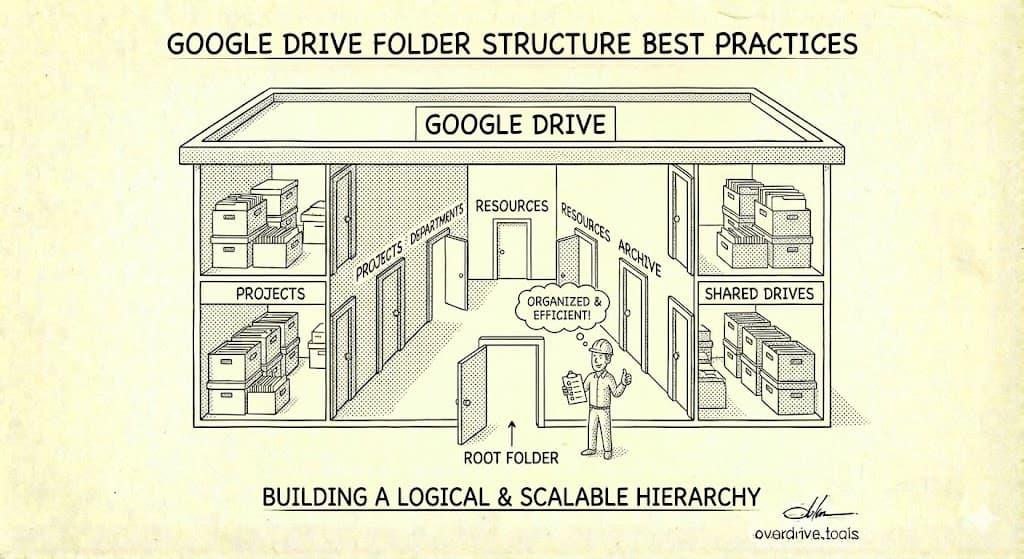
The best Google Drive folder structure uses 5-7 top-level folders organized by function (not file type), keeps nesting to 2-3 levels deep, and mirrors how you think about your work—not how Google categorizes files. Start broad, add subfolders only when you have 20+ files in a category, and prioritize action-based folders ("Active Projects," "Archive") over purely topical ones.
A good folder structure is like a filing cabinet that organizes itself. When done right, you'll instinctively know where to save new files and where to find old ones. This guide provides templates for different use cases and principles that apply to any structure.
Core Principles
Before diving into templates, understand the principles that make any structure work.
Principle 1: Shallow Beats Deep
Every click required to reach a file is friction. Deep nesting (5+ levels) makes both filing and finding slow.
Too deep:
📁 Work → 📁 Projects → 📁 2025 → 📁 Q1 → 📁 Client A → 📁 Deliverables → 📁 Reports → file.pdf
That's 7 clicks to reach a file.
Better:
📁 Active Clients → 📁 Client A → 📁 Deliverables → file.pdf
That's 3 clicks.
Rule of thumb: If you're past 3 levels deep, reconsider your structure.
Principle 2: Function Over Type
Organizing by file type (Documents, Spreadsheets, PDFs, Images) seems logical but fails in practice. Real work involves multiple file types for the same project.
Don't do this:
📁 Documents
📁 Spreadsheets
📁 PDFs
📁 Images
When you're working on a project, you don't think "I need a spreadsheet"—you think "I need the budget for Project X." Organize by function, project, or area of life.
Do this instead:
📁 Project X
├── 📁 Budget (spreadsheet)
├── 📁 Proposal (document)
├── 📁 Contract (PDF)
└── 📁 Assets (images)
Principle 3: Clear Boundaries
Each folder should have an obvious, non-overlapping purpose. If you frequently ask "does this go in Folder A or Folder B?", your boundaries aren't clear.
Overlapping (bad):
📁 Work Projects
📁 Client Work
📁 Active Projects
Where does active client work go?
Clear (good):
📁 Active Clients
📁 Past Clients
📁 Internal Projects
No ambiguity.
Principle 4: Build for Retrieval, Not Storage
The goal isn't to store files—it's to find them later. Design your structure around how you'll search, not how you'll save.
Ask yourself:
- When I need this file in 6 months, what will I remember about it?
- Will I search by project? By date? By client? By type of document?
Structure accordingly.
Template: Personal Use
For managing personal documents, finances, health records, and life admin.
📁 My Drive
├── 📁 Finance
│   ├── 📁 Banking
│   ├── 📁 Investments
│   ├── 📁 Taxes
│   │   ├── 📁 2024
│   │   └── 📁 2025
│   └── 📁 Insurance
├── 📁 Health
│   ├── 📁 Medical Records
│   ├── 📁 Prescriptions
│   └── 📁 Insurance Claims
├── 📁 Home
│   ├── 📁 Purchases & Warranties
│   ├── 📁 Maintenance
│   └── 📁 Utilities
├── 📁 Personal
│   ├── 📁 Identity Documents
│   ├── 📁 Education
│   └── 📁 Memberships
├── 📁 Projects
│   ├── 📁 [Active Project 1]
│   └── 📁 [Active Project 2]
├── 📁 Reference
│   ├── 📁 Guides & How-Tos
│   └── 📁 Templates
└── 📁 Archive
    ├── 📁 2023
    └── 📁 2024
Key features:
- Life areas as top-level folders
- Time-based subfolders for recurring items (taxes)
- Separate "Projects" for temporary endeavors
- Archive for old but potentially needed files
Template: Freelancer / Consultant
For managing client work, business operations, and marketing.
📁 My Drive
├── 📁 Active Clients
│   ├── 📁 [Client Name]
│   │   ├── 📁 Contracts & Admin
│   │   ├── 📁 Project Files
│   │   └── 📁 Deliverables
│   └── 📁 [Client Name]
│       ├── 📁 Contracts & Admin
│       ├── 📁 Project Files
│       └── 📁 Deliverables
├── 📁 Past Clients
│   └── 📁 [Client Name - Year]
├── 📁 Business Operations
│   ├── 📁 Finances
│   │   ├── 📁 Invoices Sent
│   │   ├── 📁 Expenses
│   │   └── 📁 Tax Documents
│   ├── 📁 Legal
│   └── 📁 Admin
├── 📁 Marketing
│   ├── 📁 Portfolio
│   ├── 📁 Proposals & Pitches
│   └── 📁 Content
├── 📁 Resources
│   ├── 📁 Templates
│   ├── 📁 Contracts & Agreements
│   └── 📁 Reference Materials
└── 📁 Archive
Key features:
- Client-centric structure (how freelancers think about work)
- Clear separation between active and past clients
- Business operations isolated from client work
- Templates and resources for efficiency
Workflow note: When a client project ends, move the entire client folder from "Active Clients" to "Past Clients" with the year appended.
Template: Small Team
For teams of 2-10 people sharing a drive or using Shared Drives.
📁 Team Drive
├── 📁 Active Projects
│   ├── 📁 [Project Name]
│   │   ├── 📁 Planning
│   │   ├── 📁 Working Files
│   │   ├── 📁 Deliverables
│   │   └── 📁 Client Communications
│   └── 📁 [Project Name]
├── 📁 Client Files
│   ├── 📁 [Client Name]
│   │   ├── 📁 Contracts
│   │   ├── 📁 Assets Received
│   │   └── 📁 Correspondence
│   └── 📁 [Client Name]
├── 📁 Team Operations
│   ├── 📁 Policies & Procedures
│   ├── 📁 Meeting Notes
│   ├── 📁 Planning
│   └── 📁 HR & Admin
├── 📁 Resources
│   ├── 📁 Templates
│   ├── 📁 Brand Assets
│   ├── 📁 Stock Photos
│   └── 📁 Training Materials
├── 📁 Archive
│   ├── 📁 2024 Projects
│   └── 📁 2023 Projects
└── 📁 _Inbox
Key features:
- Separation between project work and client relationship files
- Team operations for internal coordination
- Shared resources accessible to everyone
- "_Inbox" folder for files that need to be sorted (the underscore keeps it at the top)
Important for teams: Agree on naming conventions and structure BEFORE sharing. Retrofitting organization onto a messy shared drive is painful.
Template: Department / Larger Organization
For departments within companies or organizations with more complex needs.
📁 Department Drive
├── 📁 00 - Department Operations
│   ├── 📁 Policies
│   ├── 📁 Procedures
│   ├── 📁 Org Charts
│   └── 📁 Planning Documents
├── 📁 01 - Active Initiatives
│   ├── 📁 [Initiative Name]
│   └── 📁 [Initiative Name]
├── 📁 02 - Ongoing Programs
│   ├── 📁 [Program Name]
│   └── 📁 [Program Name]
├── 📁 03 - Client / Stakeholder Files
│   └── 📁 [Name]
├── 📁 04 - Team Resources
│   ├── 📁 Templates
│   ├── 📁 Training
│   └── 📁 Reference
├── 📁 05 - Meeting Notes & Minutes
│   ├── 📁 2024
│   └── 📁 2025
├── 📁 06 - Reports & Analytics
│   ├── 📁 Monthly Reports
│   ├── 📁 Quarterly Reports
│   └── 📁 Annual Reports
└── 📁 99 - Archive
    ├── 📁 2024
    └── 📁 2023
Key features:
- Numbered prefixes force sort order (00 comes before 01)
- Separation between time-limited initiatives and ongoing programs
- Dedicated space for recurring reports
- Archive with year-based organization
Naming Convention Best Practices
Folder and file naming matters as much as structure.
For Folders
Use clear, specific names:
- ✅
Active Clients - ❌
Clients(are they active? past? potential?)
Be consistent:
- ✅ All folders:
Client Name - Location - ❌ Mix of
Acme Corp,Beta (NYC),Gamma Industries - 2024
Avoid abbreviations only you understand:
- ✅
Q1 2025 Planning - ❌
Q1-25-PLN
For Files
Date-first for chronological files:
2025-01-15 Meeting Notes - Project Kickoff
2025-01-22 Meeting Notes - Design Review
Category-first for reference files:
Template - Invoice
Template - Proposal
Contract - Acme Corp - 2025
Version naming:
Proposal v1
Proposal v2
Proposal v2.1
Proposal FINAL
Or better—use Google Docs version history instead of multiple files.
Common Mistakes to Avoid
Mistake 1: Too Many Top-Level Folders
If your My Drive root has 20+ folders, you've gone too broad. Consolidate into 5-7 main categories.
Mistake 2: Folder for Every Occasion
Don't create a folder until you need it. Empty folders and folders with 1-2 files add navigation clutter without providing organization value.
Mistake 3: Inconsistent Depth
If some areas are 5 levels deep and others are 1 level, navigating becomes unpredictable. Aim for consistent depth across similar categories.
Mistake 4: Duplicate Structures
If you have "Projects" under "Work" AND "Projects" at the root, you're creating confusion. One location per type of content.
Mistake 5: Filing by Date Only
📁 2024
│   ├── 📁 January
│   ├── 📁 February
│   ...
This structure fails because you rarely remember when you created something. File by topic/project/function, use dates in filenames for chronology within folders.
Implementing Your Structure
If Starting Fresh
- Create your top-level folders based on templates above
- Create only essential second-level folders
- Start using the structure for all new files
- Add subfolders as genuine needs emerge
If Cleaning Up Existing Chaos
- Create your new structure alongside existing files
- Use the new structure for all new files immediately
- Gradually migrate old files (or use the archive approach)
- Consider using Overdrive to identify duplicates and clutter before migrating—no point organizing files you should delete
For more on the cleanup process, see How to Finally Organize Your Google Drive.
Shared Drives vs. My Drive
If you use Google Workspace, understand when to use Shared Drives.
Use Shared Drives when:
- Files should belong to the team, not an individual
- Multiple people need consistent access
- Files should persist when people leave
- You want centralized access control
Use My Drive when:
- Files are personal or individual work
- You need to share selectively (not everything)
- You're the primary owner and manager
Shared Drives have a flatter permission model—everyone who's a member sees everything in the drive. For selective sharing, My Drive with specific folder shares may work better.
Frequently Asked Questions
Should I use emoji in folder names?
They can help with quick visual scanning, but use them sparingly and consistently. A few emoji for major categories (📁 💰 Finance, 📁 📋 Projects) can help; emoji on every folder becomes noise.
How do I handle files that fit multiple categories?
Pick the primary location and use "Add shortcut to Drive" to create links in secondary locations. Don't duplicate files—it creates sync issues.
Should I include the year in folder names?
For folders containing time-bounded content (tax documents, annual reports), yes. For ongoing projects or categories, no—it just adds noise.
What about color-coding folders?
Google Drive lets you color-code folders (right-click → Organize → Change color). Use this sparingly for high-level status indicators. Too many colors become meaningless.
How do I enforce structure with a team?
Document your structure, train new team members, and designate someone to periodically audit and clean up. Consider using the _Inbox pattern—a designated folder for unsorted files that gets processed regularly. Tools like Overdrive can help identify organizational issues like empty folders and duplicates during audits.
My organization has mandated structure. What if it doesn't work for me?
Use the mandated structure for shared/organizational content. You can maintain your own structure in your personal My Drive for files only you access.
Keep Reading
- How to Finally Organize Your Google Drive — Complete guide to organizing an existing messy Drive
- How to Find and Delete Empty Folders in Google Drive — Cleaning up structural clutter
- The Complete Google Drive Security Audit Checklist — Good structure supports good security