How to Find and Delete Empty Folders and Files in Google Drive
Empty folders and zero-byte files clutter your Google Drive. Here's how to find them, decide what to delete, and clean up the structural mess—manually and with automation.
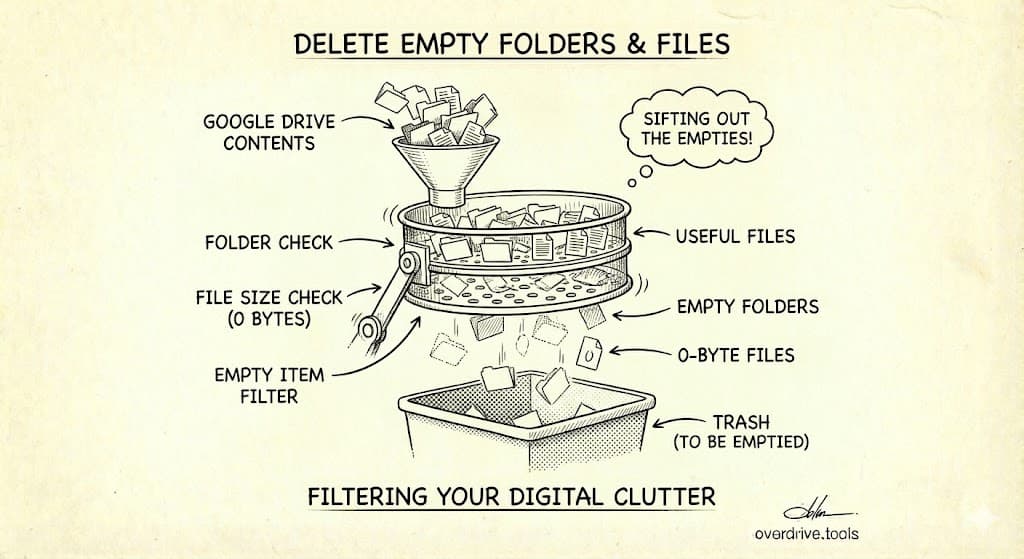
Google Drive doesn't have a built-in way to find empty folders or zero-content files. To find empty folders manually, you need to click into each folder and check if it contains files. For empty files (like untitled Google Docs with no content), search for title:Untitled to find candidates. The most efficient approach is using the Drive API or a cleanup tool that can scan your entire structure at once.
Empty folders and contentless files are organizational noise. They make your Drive harder to navigate, create the illusion of organization where none exists, and accumulate over time until your folder structure is more empty shells than actual content. Here's how to clean them up.
Why Empty Folders and Files Accumulate: Understanding the sources helps prevent future accumulation.
Empty Folders Appear From:
- Abandoned projects: You created a folder structure, then the project was canceled
- Premature organization: Creating folders before you have files to put in them
- File moves: Moving all files out of a folder but not deleting the folder itself
- Sync errors: Desktop sync sometimes creates empty folders during conflicts
- Shared folder cleanup: Collaborators deleted their files, leaving your folder empty
- Templates copied: You copied a folder structure template but never populated it
Empty or Near-Empty Files Appear From:
- Untitled documents: Creating a Google Doc/Sheet/Slide and never adding content
- Accidental creation: Opening the "New" menu and clicking the wrong option
- Abandoned drafts: Starting a document and immediately abandoning it
- Testing: Creating files to test sharing, formatting, or features
- Template stubs: Creating placeholder files that were never completed
Finding Empty Folders
Method 1: Manual Navigation
The tedious but thorough approach.
- Open Google Drive
- Click into each folder
- Check if it contains files or subfolders
- If empty, right-click → Move to trash
- Repeat for all folders, including nested subfolders
This works for small Drives but becomes impractical with hundreds of folders.
Method 2: List View Inspection
A slightly faster manual approach.
- In Google Drive, switch to List view (click the view toggle in the top right)
- Navigate to a folder
- Sort by "Last modified"
- Folders that were "never modified" or haven't been touched in years are candidates for being empty
- Click to verify, then delete if empty
Method 3: Use Overdrive (Automated)
Manual checking doesn't scale. Overdrive scans your entire Drive and flags all empty folders automatically—including nested empty folders that are easy to miss. The free scan shows you every empty folder at once, and you can delete them in bulk instead of one by one.
Finding Empty or Contentless Files
Search for Untitled Documents
Google Docs, Sheets, and Slides often get created and abandoned without a name.
Search for untitled Google Docs:
title:Untitled type:document
Search for untitled Spreadsheets:
title:Untitled type:spreadsheet
Search for untitled Presentations:
title:Untitled type:presentation
Search for untitled Drawings:
title:Untitled type:drawing
Review each result. Many untitled files are empty or nearly empty and can be deleted.
Search for Common Empty File Patterns
Very small files (potentially empty):
Unfortunately, Google Drive's search doesn't support filtering by file size for small files. You can only search for files larger than a threshold, not smaller.
Alternative approach: In Drive's list view, sort by file size (if available) to surface small files.
Check Recently Created Files
Files created recently and never modified are often accidental or abandoned.
- Click "Recent" in the left sidebar
- Look for files you don't recognize or remember creating
- Open to verify if they have content
- Delete empty or useless files
Deciding What to Delete
Not every empty folder or untitled file should be deleted immediately.
Safe to Delete:
- Empty folders with generic names: "New Folder," "Untitled folder"
- Empty folders from completed projects: If the project is done and archived elsewhere
- Untitled documents that are blank: Open them first to confirm
- Duplicate empty structures: Multiple similar empty folder trees
- Old empty folders: Created years ago and never used
Verify Before Deleting:
- Empty folders with specific names: "Q2 Reports" might be waiting for content
- Recently created empty folders: You or a collaborator might be about to add files
- Empty folders in shared drives: Others might have plans for them
- Untitled files with content: Some people work in untitled files intentionally
Don't Delete:
- Template folders: Intentionally empty structures you copy for new projects
- Placeholder folders: Part of a system that requires the folder to exist
- Shared empty folders: Where collaborators expect to add content
Bulk Deletion Process
Once you've identified empty folders and files to delete.
Step 1: Create a Deletion Candidates List
As you find empty items, don't delete immediately. Instead:
- Star the items (click the star icon)
- Or add them to a "To Delete" folder temporarily
- This lets you review before permanent deletion
Step 2: Review the List
Check your starred items or "To Delete" folder:
- Confirm each item is truly empty or useless
- Check for any shared items that others might expect
- Verify nothing important is misfiled as "empty"
Step 3: Move to Trash
Select multiple items (Shift+click for range, Ctrl/Cmd+click for individual):
- Right-click → Move to trash
- Or press the Delete key
Step 4: Empty Trash (Optional)
Items in Trash still exist for 30 days. To free up space immediately:
- Click "Trash" in the left sidebar
- Click "Empty trash" in the top right
- Confirm deletion
Warning: Emptying trash is permanent. Make sure you won't need these items.
Preventing Future Empty Clutter
Change Your Habits
Don't pre-create folder structures:
Instead of creating 10 folders for a project before you have files, create folders as you need them. An "Active Project" folder with files is better than a beautiful folder tree that's mostly empty.
Name files immediately:
When you create a Google Doc, name it right away. The moment you think "I'll name it later," you're creating future clutter.
Delete abandoned work:
If you start a document and realize you don't need it, delete it immediately. Don't leave it as "Untitled document 47."
Clean up after projects:
When a project ends, review its folder structure. Delete empty folders, archive what's needed, and clean up the rest.
Regular Maintenance
Add a quarterly task to scan for empty folders and untitled files:
- Search for
title:Untitled - Spot-check folder structure for empty folders
- Delete what's not needed
- Takes 15-30 minutes if done regularly
Special Cases
Empty Folders in Shared Drives
In Shared Drives (Google Workspace), be careful about deleting empty folders:
- Others might be planning to use them
- Check with collaborators before bulk deletion
- Consider announcing cleanup before starting
Empty Folders From Sync
If you use Google Drive for Desktop, sync can create empty folders during conflicts or errors. These are safe to delete—they're artifacts of sync issues, not intentional folders.
Templates and Folder Structure Starters
If you use empty folder structures as templates (copy them for each new project), don't delete these. Consider:
- Naming them clearly: "TEMPLATE - Project Structure"
- Keeping them in a dedicated Templates folder
- Adding a README file inside to prevent appearing empty
Frequently Asked Questions
Do empty folders use storage space?
No. Folders themselves don't consume storage—only files do. However, empty folders consume navigation space and mental overhead. Cleaning them up is about organization, not storage.
Can I recover deleted folders?
Items in Trash can be recovered for 30 days. After that, or after emptying Trash, they're gone. Google Workspace admins can recover some deleted items for 25 additional days through the Admin Console.
Will deleting an empty folder delete files inside it?
If the folder appears empty to you but contains files you don't have access to (in a shared context), you might not be able to delete it. Google Drive prevents deleting folders that contain files owned by others.
How do I find all empty folders at once?
Google Drive doesn't offer this feature natively. You would need to use the Drive API, a third-party tool like Overdrive, or Google Apps Script to scan all folders and identify empty ones programmatically.
What about nested empty folders?
A folder that contains only empty subfolders is effectively empty but won't look empty. This is why manual checking fails—you need to check every level. Automated tools handle nested empty folders correctly.
Can I delete folders shared with me?
You can remove shared folders from your Drive (removing your access), but you can't delete them—only the owner can. If a shared folder is empty and you don't need it, click "Remove" to take it out of your view.
Keep Reading
- How to Finally Organize Your Google Drive — Complete guide to organizing your Drive
- Google Drive Folder Structure: Best Practices — Building structure that doesn't accumulate empties
- The Ultimate Google Drive Storage Cleanup Guide — Full cleanup including files, not just folders